Per-page export
one PDF file per page
Page-level export
Export each PDF page as one standalone PDF file.
Per-page export
one PDF file per page
Batch-friendly
ideal for upload portals and review sets
200
max pages per run
Maximum file size: 50MB
Maximum pages per run: 200
Split to Single Pages is useful when you need to export every page as an individual PDF file and get a page-level PDF set for upload forms, legal packets, and selective sharing.
Choose one goal to get a recommended mini-workflow and reduce trial-and-error.
Reduce retries under upload limits. Keep only required pages, then compress.
Open full playbook →This screenshot shows the actual working interface of the current tool so you can confirm the flow before uploading files.
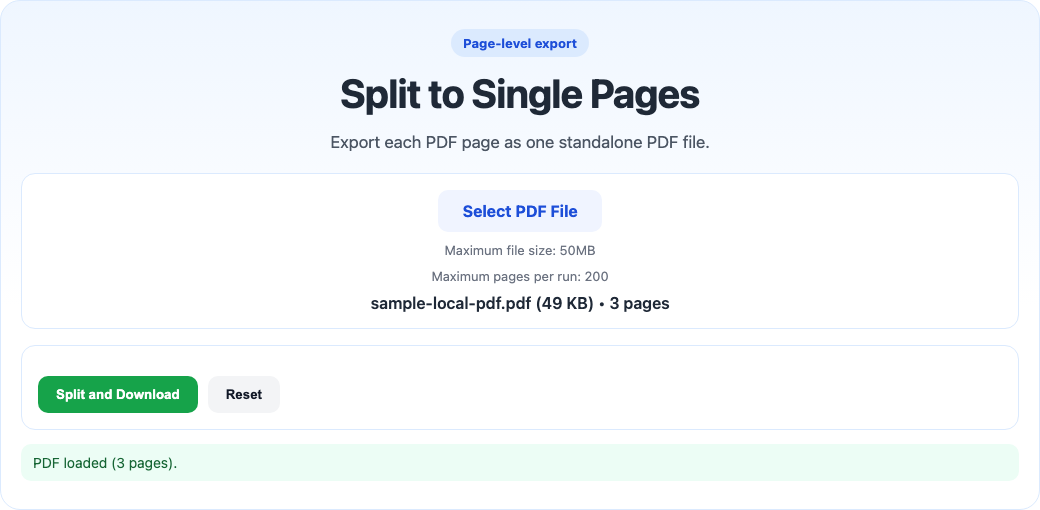
Preview current and nearby route interfaces, then jump with one click when you need to switch workflows.
Current tool interface
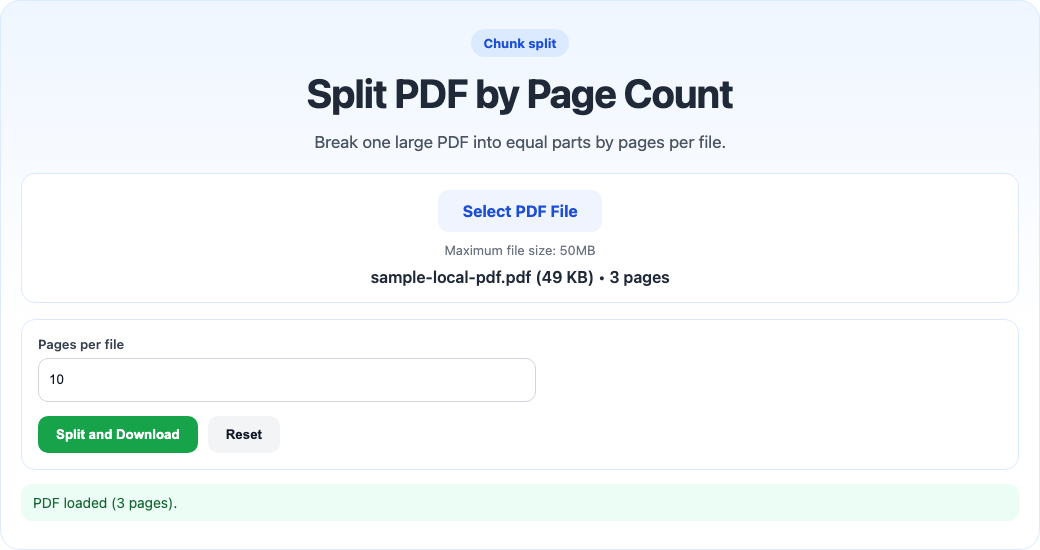
Recommended next interface
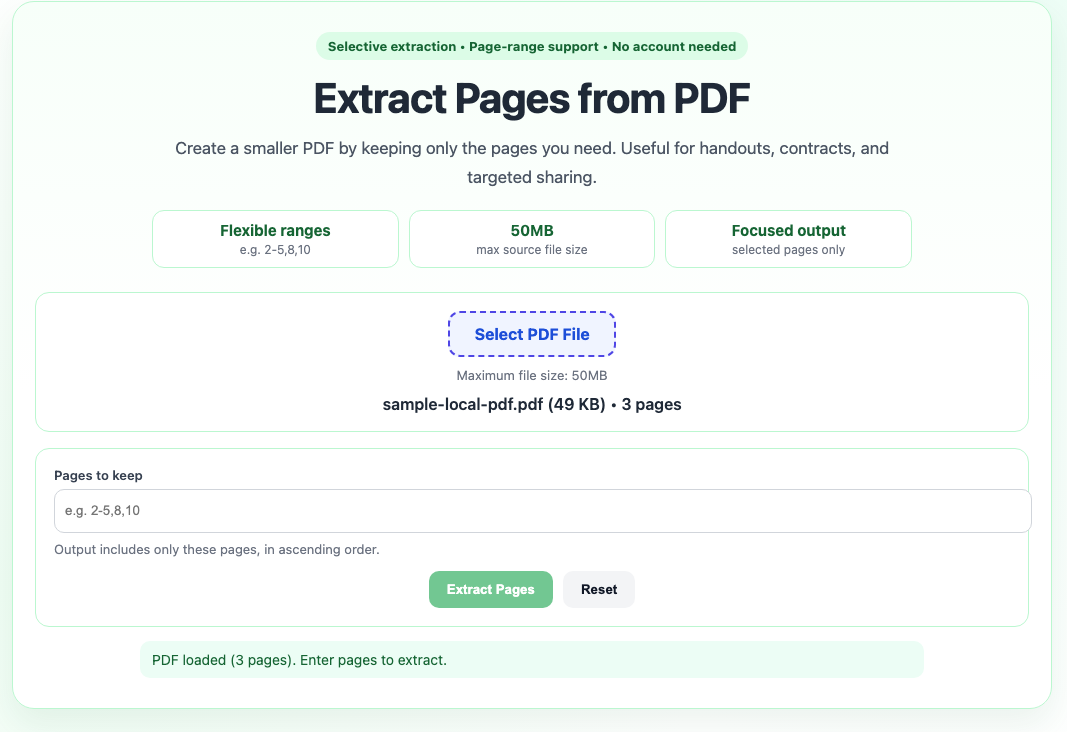
Backup route interface
Use these shared routes when you need the full playbook, a deeper guide, a different tool, or a safer support path.
Need the full workflow
Reduce retries under upload limits. Keep only required pages, then compress.
Open playbook →Need edge-case guidance
Use the dedicated help article when you want step-by-step guidance, caveats, and safer checks before delivery.
Open tool guide →Need a different operation
Open the full tools directory when you realize the real task is merge, split, convert, protect, or inspect.
Open tools directory →Need route confirmation
Go to the help hub when you want broader walkthroughs, quick answers, or escalation options before you continue.
Open help center →Use these focused hints when you want fewer mistakes and faster final delivery.
Re-merging selected pages can produce cleaner deliverables for portal uploads.
Open merge tool →Validate readability and page order before processing a full file.
When the current run is not ideal, switch to scenario playbook without resetting context.
Open playbook →Large documents trigger many downloads. Confirm browser allows multiple file downloads.
This operation keeps existing PDF page content as-is. Always preview the output before external delivery.
This page uses browser-side processing based on pdf-lib for the core operation.
Current page limit is 50MB. If needed, compress or split the source PDF first, then process again.
Primary operation
export every page as an individual PDF file
Expected result
a page-level PDF set for upload forms, legal packets, and selective sharing.
Main caveat
Large documents trigger many downloads. Confirm browser allows multiple file downloads.
Workflow confidence
Medium · Flow is stable, but verify key pages after export.
Recommended next tool
Need a full walkthrough with edge cases and best practices? Open the dedicated help article for this tool.
Recommended by workflow similarity and tool usage priority:
Use these pairings when you need to finish a complete workflow, not just one isolated action.
These alternatives are selected from neighboring workflows to reduce retries and unblock delivery.
If you are comparing workflows, use this quick matrix to avoid extra trial and error.
| Your scenario | Recommended tool | Why this tool |
|---|---|---|
| Combine several files into one package | Merge PDFs | Keeps all pages in sequence for one deliverable. |
| Send only part of a long report | Split PDF | Export selected ranges without editing original file. |
| Rebuild page order before submission | Reorder Pages | Supports custom sequences like 3,1,2 or 8-4. |
| Lower file size for email or upload limits | Compress PDF | Reduces size while keeping readable quality. |
| Need to revise content before exporting | Edit PDF | Handles text overlays and visual adjustments quickly. |