Selective extraction • Page-range support • No account needed

Extract Pages from PDF

Create a smaller PDF by keeping only the pages you need. Useful for handouts, contracts, and targeted sharing.

Flexible ranges

e.g. 2-5,8,10

50MB

max source file size

Focused output

selected pages only

Maximum file size: 50MB

Content & Update Info

Reviewed By: PDFMagic Editorial TeamLast Updated: 2026-03-03Editorial Policy · See our publishing and review standards
  • Steps on this page were verified against the current tool UI.
  • File size limits and processing statements were re-checked for consistency.
  • FAQ and privacy-related wording were refreshed to avoid stale conflicts.

Jump to section

When to use this tool

Extract Pages is useful when you need to keep selected pages and export them into a new PDF file and get a focused PDF containing only the pages required for sharing or submission.

Pick a goal before processing

Choose one goal to get a recommended mini-workflow and reduce trial-and-error.

Reduce retries under upload limits. Keep only required pages, then compress.

  1. Split by section
  2. Remove non-required pages
  3. Compress to target size
Open full playbook →

How to use

  1. Upload file: Select your source PDF from local device.
  2. Configure options: Adjust the key options for this operation.
  3. Export result: Run processing and download the new PDF file.

Real interface preview

This screenshot shows the actual working interface of the current tool so you can confirm the flow before uploading files.
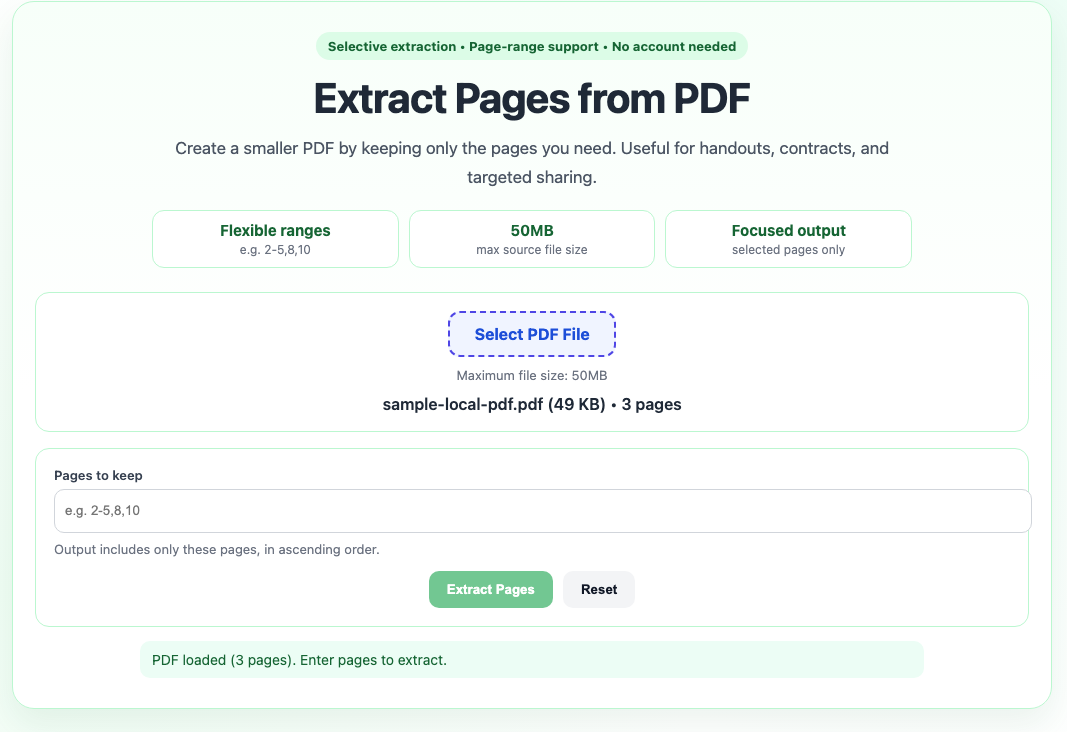
Extract PDF pages tool interface screenshot
Captured from the live page with default settings.

Route preview gallery

Preview current and nearby route interfaces, then jump with one click when you need to switch workflows.

Need a different route?

Use these shared routes when you need the full playbook, a deeper guide, a different tool, or a safer support path.

Need the full workflow

Open the matching task playbook

Reduce retries under upload limits. Keep only required pages, then compress.

Open playbook →

Need edge-case guidance

Open the detailed guide for this tool

Use the dedicated help article when you want step-by-step guidance, caveats, and safer checks before delivery.

Open tool guide →

Need a different operation

Browse neighboring PDF tools

Open the full tools directory when you realize the real task is merge, split, convert, protect, or inspect.

Open tools directory →

Need route confirmation

Use Help, FAQ, and support routes

Go to the help hub when you want broader walkthroughs, quick answers, or escalation options before you continue.

Open help center →

Practical tips

  • When preparing sections for different audiences, run extraction separately for each page set.
  • Use clear and small test files first when trying a new workflow.
  • After export, quickly check key pages, fonts, and layout before final delivery.

Operator hint cards

Use these focused hints when you want fewer mistakes and faster final delivery.

Run a 2-3 page sample first

Validate readability and page order before processing a full file.

Keep a full playbook one click away

When the current run is not ideal, switch to scenario playbook without resetting context.

Open playbook →

Use fallback routes before manual tweaks

Switching to neighboring workflows often resolves edge cases faster than repeated local edits.

Open fallback route →

Quality and safety checks

These checks are used to reduce delivery errors and improve output consistency across real workflows.

  • Run a quick check on key pages (small text, dense tables, signatures) before sharing.
  • Keep one original source file so you can roll back when constraints change.
  • When limits are strict, verify with one sample file first, then process full batch.
  • If output is still unstable, switch to playbook and fallback routes instead of repeated blind retries.

Quality review date: 2026-04-06

Limits and compatibility

Extracted pages are exported in ascending order by page index in this workflow.

Frequently asked questions

Will Extract Pages reduce PDF quality?

This operation keeps existing PDF page content as-is. Always preview the output before external delivery.

Where does Extract Pages run?

This page uses browser-side processing based on pdf-lib for the core operation.

What if my file is too large?

Current page limit is 50MB. If needed, compress or split the source PDF first, then process again.

Operation profile

Primary operation

keep selected pages and export them into a new PDF file

Expected result

a focused PDF containing only the pages required for sharing or submission.

Main caveat

Extracted pages are exported in ascending order by page index in this workflow.

Workflow confidence

High · Current flow usually works well for most input files.

Recommended next tool

Merge PDF

Detailed guide

Need a full walkthrough with edge cases and best practices? Open the dedicated help article for this tool.

Smart next-step recommendations

Recommended by workflow similarity and tool usage priority:

Workflow bundles

Use these pairings when you need to finish a complete workflow, not just one isolated action.

  1. Bundle 1: Extract Pages + Merge PDF: Run Extract Pages first, then continue with Merge PDF to finish the workflow with fewer retries. Merge PDF
  2. Bundle 2: Extract Pages + Split PDF: Run Extract Pages first, then continue with Split PDF to finish the workflow with fewer retries. Split PDF
  3. Bundle 3: Extract Pages + Reorder Pages: Run Extract Pages first, then continue with Reorder Pages to finish the workflow with fewer retries. Reorder Pages

If current flow fails, try these routes

These alternatives are selected from neighboring workflows to reduce retries and unblock delivery.

  1. Merge PDF: Same-category fallback with lower switching cost. Open route
  2. Split PDF: Same-category fallback with lower switching cost. Open route
  3. Reorder Pages: Same-category fallback with lower switching cost. Open route

How to choose the right PDF tool

If you are comparing workflows, use this quick matrix to avoid extra trial and error.

Your scenarioRecommended toolWhy this tool
Combine several files into one packageMerge PDFsKeeps all pages in sequence for one deliverable.
Send only part of a long reportSplit PDFExport selected ranges without editing original file.
Rebuild page order before submissionReorder PagesSupports custom sequences like 3,1,2 or 8-4.
Lower file size for email or upload limitsCompress PDFReduces size while keeping readable quality.
Need to revise content before exportingEdit PDFHandles text overlays and visual adjustments quickly.

When to extract pages, and when not to

Extraction is best when only a small subset is required for review, submission, or external sharing.

Use this when

  • You only need signature pages, key clauses, or specific appendices.
  • You want to share a focused subset without exposing full-source context.
  • You need clean keep-rules like 2-5,8,12 for audit handoff.

Avoid this when

  • You are removing a few pages but still keeping most pages in one file.
  • You need split outputs by chapter batches rather than keep-list extraction.
  • You are unsure which pages to keep and need a broader review pass first.

Real limits to verify before delivery

Range syntax directly impacts output scope

Typos in ranges can drop required pages. Recheck keep-list before export.

Cross-page tables may lose context

If a table spans pages, extracting only one page can break interpretation.

Referenced page numbers may no longer align

After extraction, internal references often need manual remap in delivery notes.

Real examples

Contract signature-only packet

Extract only signature and authorization pages for rapid legal confirmation.

Board briefing subset

Keep summary and KPI pages from a long report to reduce review time.

Class assignment required pages

Submit only requested page ranges while excluding irrelevant content.

Boundary vs nearby tools

Extract Pages vs Remove Pages

Use Extract Pages when:when keep-rules are clear and output should be a focused subset.

Use the other tool when:when delete-rules are simpler and most pages should stay.

Extract Pages vs Split PDF

Use Extract Pages when:for one subset output based on specific keep ranges.

Use the other tool when:for multi-file batch outputs by intervals or chapter chunks.

Extract Pages vs Reorder Pages

Use Extract Pages when:when page scope should shrink before delivery.

Use the other tool when:when scope stays same but sequence must be adjusted.

Recent maintenance notes

Updated: April 8, 2026

  • Users were extracting single table pages and losing continuation context, so we added explicit checks for cross-page tables before export.
  • Several delivery handoffs failed because extracted subsets still used old page references, so we added reference-remap warnings in the practical guidance.
  • People often mixed Extract with Remove/Split/Reorder in one loop, so we rewrote route boundaries to reduce wrong-tool retries.

What usually happens after extraction

Extraction is often a middle step. Pick the next route by your delivery goal instead of repeating trial-and-error edits.

Submit extracted subset directly

When to use: Use when the recipient needs only a narrow page set and no extra formatting steps.

Watch out: Re-check page references in emails or notes because original numbering context is gone.

Check subset metadata →

Compress after extraction

When to use: Use when extracted pages are still too large for portal/email limits.

Watch out: Compression can soften small labels; verify key pages before external handoff.

Open compress route →

Sign extracted pages

When to use: Use when signature workflow applies only to selected clauses/pages.

Watch out: Finish all content changes first to avoid re-sign cycles.

Open sign route →

Re-merge with other packets

When to use: Use when extracted subset is just one component in a final delivery packet.

Watch out: Confirm page order before merge so chapter boundaries remain stable.

Open merge route →

If your goal is only removing a few pages from the original file, switch to Remove Pages before continuing.

FAQ

How do I extract only a few pages from a PDF?

Upload your PDF, enter the pages to keep (for example 1-3,8), and export a new PDF with selected pages only.

Can I extract non-consecutive pages?

Yes. You can enter page lists and ranges together, such as 1,4,7-9,15.

Does extraction change page quality?

No. Extracted pages retain original quality because pages are copied from the source PDF.