How to Convert Word to PDF
This guide shows how to convert Microsoft Word documents (DOC and DOCX) to PDF format using our online converter. Follow the steps below to create consistent PDF output.
Quick Start
Ready to convert your Word document now? Use our online converter to get started immediately.
Go to Word to PDF Converter →Step-by-Step Conversion Process
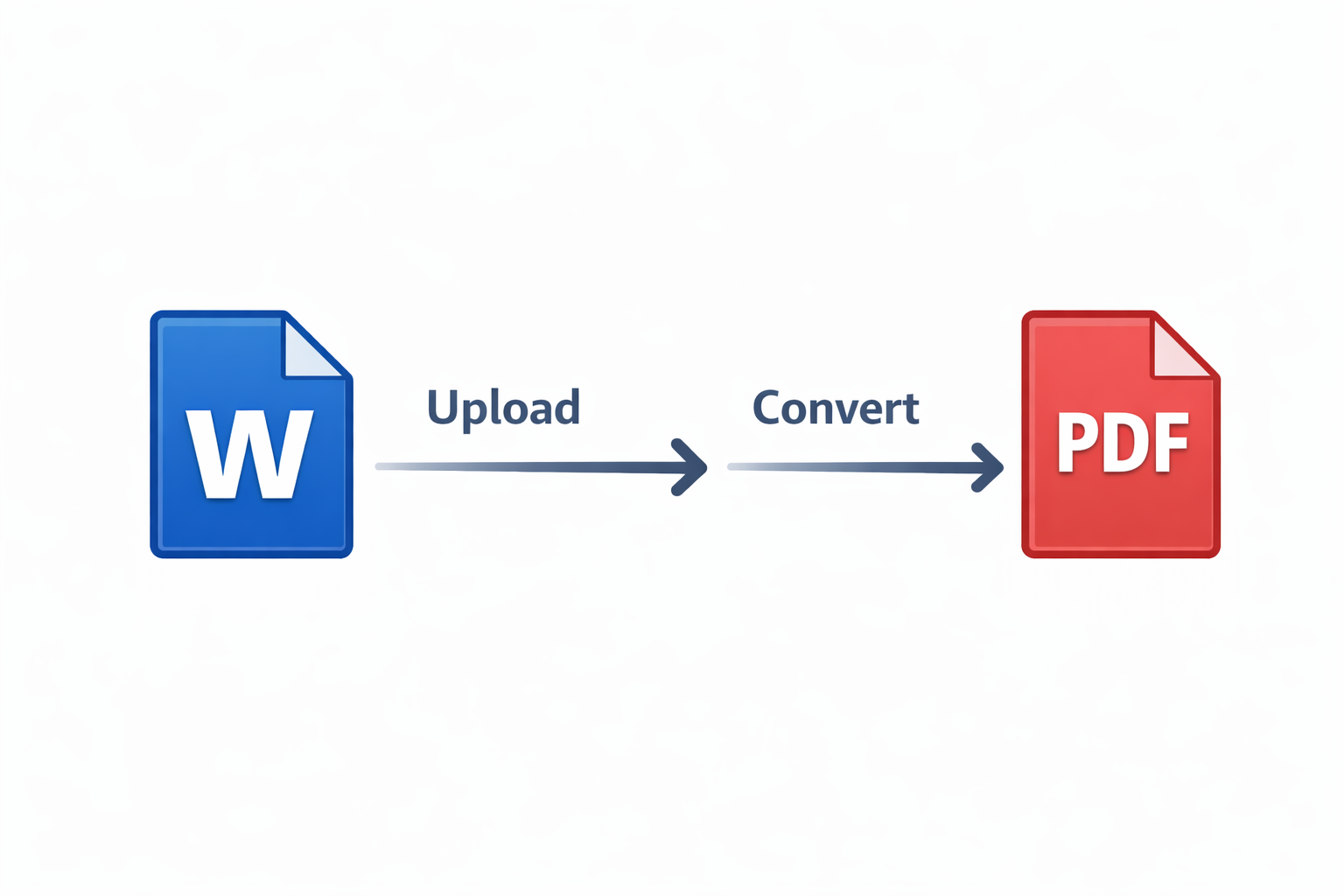
Upload Your Word Document
Click the "Choose Word File" button and select the DOC or DOCX document you want to convert from your device. You can also drag and drop the file directly onto the page for faster upload.
Start the Conversion
Once your file is uploaded, click the "Convert to PDF" button. Our system will immediately begin processing your Word document and converting it to PDF format with preserved formatting.
Download Your PDF File
After the conversion completes (usually within seconds), your PDF file will automatically download to your device. The PDF is ready to share, print, or archive with all your original formatting intact.
Why Convert Word Documents to PDF?
Universal Compatibility
PDFs can be opened on any device without requiring Microsoft Word or special software
Preserve Formatting
PDFs maintain your document's exact layout, fonts, and images across all platforms
Professional Sharing
Share documents with clients and colleagues in a format that looks professional everywhere
Print-Ready
PDFs ensure consistent printing results with no formatting surprises
Tips for Best Conversion Results
Finalize Your Document First
Make sure your Word document is completely finished before converting. Check for spelling errors, formatting issues, and ensure all images are properly positioned. Once converted to PDF, the document becomes static and cannot be edited easily.
Use Standard Fonts
For best compatibility, use common system fonts like Arial, Times New Roman, or Calibri. If you use custom or decorative fonts, they may not display correctly on all devices unless they're embedded in the PDF.
Check Page Layout
Review your page setup, margins, and orientation in Word before converting. What you see in Word is what you'll get in the PDF. Use Print Preview in Word to see how your document will look.
Common Issues and Solutions
Images Appear Blurry
This can happen if images in your Word document are low resolution. Use high-quality images (at least 300 DPI for print) in your Word document before conversion for best results.
Custom Fonts Look Different
If you're using custom fonts that aren't standard on most systems, they may be substituted with similar fonts. To avoid this, consider using standard fonts or embedding fonts in your Word document.
File Size is Too Large
Our converter supports files up to 50 MB. If your Word document is larger, try compressing images within Word, removing unnecessary embedded objects, or splitting the document into smaller sections.
Frequently Asked Questions
Is the Word to PDF converter really free?
Yes. Core Word to PDF conversion is available without payment, with limits shown on this page.
Will my formatting be preserved?
Yes, our converter preserves fonts, images, tables, headers, footers, and page layouts. The PDF will look exactly like your Word document.
Can I convert both DOC and DOCX files?
Yes, our converter supports both DOC (Word 97-2003) and DOCX (Word 2007 and later) file formats.
How long does conversion take?
Most Word documents convert to PDF in under 10 seconds. Larger files with many images may take slightly longer.
Is my document secure?
Yes. Files are encrypted during upload and removed after processing/session cleanup according to our retention policy.