How to Split a PDF into Separate Pages
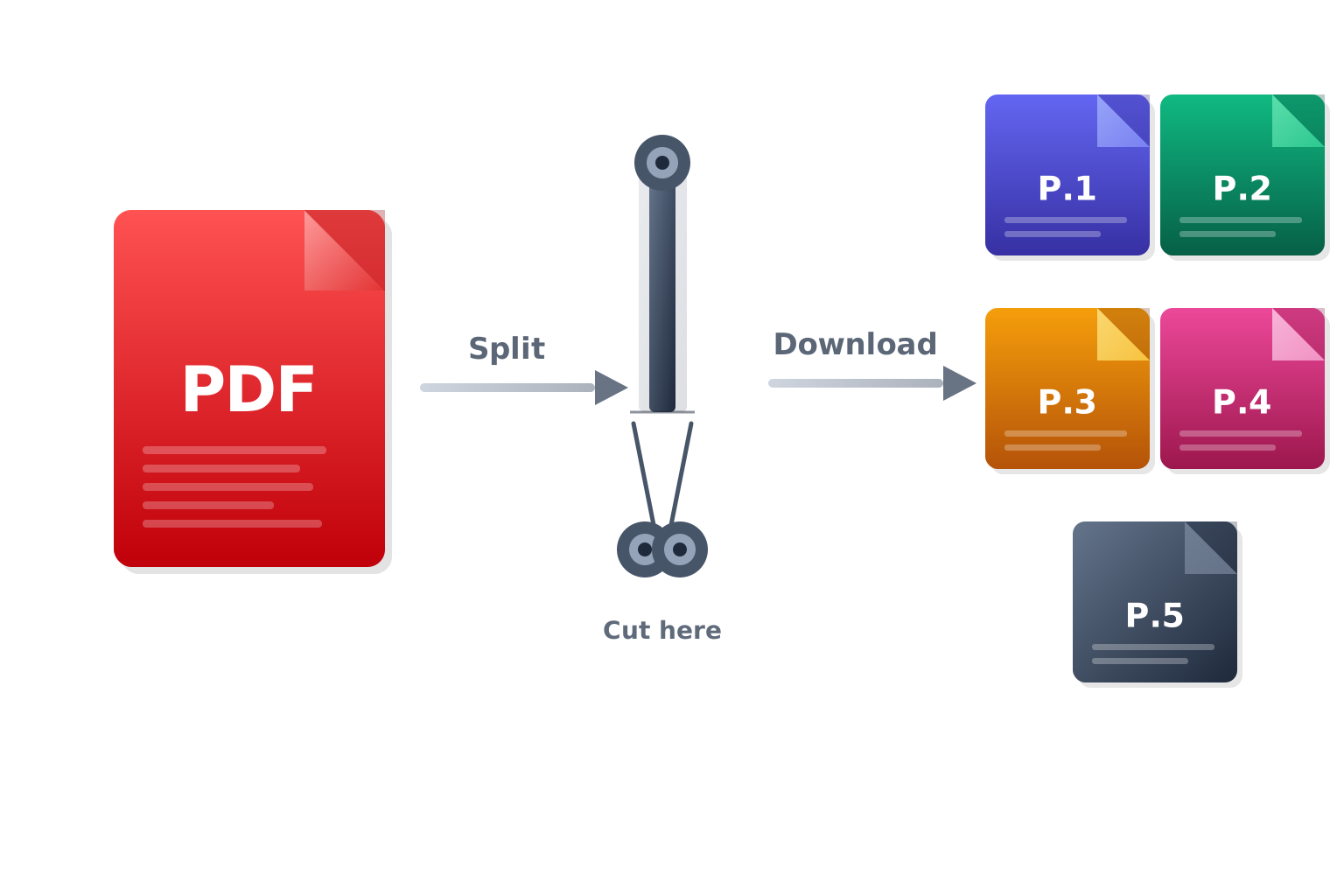
Need just one chapter from a report? Want to extract a single page from a contract? PDFMagic's free online PDF splitter lets you break any PDF into individual pages or custom page ranges — no software required. Upload your file, choose how to split it, and download exactly the pages you need.
Quick Start
Ready to split your PDF now? Open the free online splitter and upload your file to get started immediately.
Go to PDF Splitter →Step-by-Step Splitting Process
Upload Your PDF File
Click the 'Choose File' button or drag and drop your PDF onto the upload area. Files up to 100MB are supported. Your file is transferred securely over an encrypted HTTPS connection.
Choose How to Split
Select your splitting mode: extract all pages as individual files, split by a fixed page range (e.g. every 5 pages), or manually enter the specific page numbers or ranges you want to extract (e.g. 1-3, 7, 10-12).
Download Your Split Files
Click 'Split PDF' to process your file. When complete, download the resulting pages or page-range files. If multiple files are generated, they will be packaged into a single ZIP archive for easy downloading.
Tips for Splitting PDFs Effectively
Use Page Range Mode for Chapters
If you want to split a book or report into chapters, use the custom page range mode. Enter the start and end page of each chapter separately to get clean, self-contained files for each section.
Check Total Page Count First
Before entering page numbers, open the PDF in any viewer to confirm the total page count and the exact pages you need. This avoids errors from entering page numbers beyond the document's actual length.
Extract Single Pages for Forms or Certificates
If you need to share just one page from a multi-page document, use the single-page extraction mode. Enter the target page number and download just that page as a standalone PDF file.
Common Issues and Solutions
The Split Output Has Fewer Pages Than Expected
Double-check that your entered page range does not exceed the document's actual page count. Also confirm that blank pages in the original are counted as pages, since they still occupy a page number slot in the PDF.
The Downloaded ZIP File Won't Open
Make sure your operating system has a ZIP extraction tool installed. On Windows, right-click and select 'Extract All'. On macOS, double-click the ZIP file. If the file appears corrupted, try downloading it again.
Content Is Cut Off in the Split Pages
This can happen if the original PDF has unusual page margins or bleed areas defined in its metadata. The content itself is not altered during splitting. If pages look clipped, check the original PDF in a viewer to confirm the issue exists in the source file.
My PDF Cannot Be Uploaded
The file may be password-protected or corrupted. If password-protected, remove the restriction in a PDF reader first, then re-upload. If the file appears corrupted, re-export it from the original application and try again.
Frequently Asked Questions
Is the PDF splitter free?
Yes. Core split workflow is free for standard usage, and output does not include forced watermark.
Can I extract just one specific page from a PDF?
Yes. Use the custom page range mode and enter a single page number. The output will be a PDF file containing only that one page.
How many pages can I split at once?
There is no strict limit on the number of pages. Files up to 100MB are supported. Very large files with hundreds of pages may take slightly longer to process.
Will the split files preserve fonts, images, and formatting?
Yes. Splitting does not re-render or modify any page content. Each output page is an exact copy of the corresponding page from the original document, preserving all fonts, images, and layout.
Can I split a password-protected PDF?
Password-protected PDFs must have their restrictions removed before splitting. Open the file in a PDF reader, remove the password, save the file, then upload it for splitting.