How to Convert PowerPoint to PDF
PowerPoint presentations are great for editing — but PDFs are what you send. Converting your .pptx file to PDF locks in your fonts, layout, and formatting so it looks identical on every device, whether or not the recipient has PowerPoint installed. Follow the steps below to convert PPT to PDF in seconds using our free online tool.
Quick Start
Ready to convert your PowerPoint file now? Use our free online converter to get started immediately.
Go to PPT to PDF Converter →Step-by-Step Conversion Process
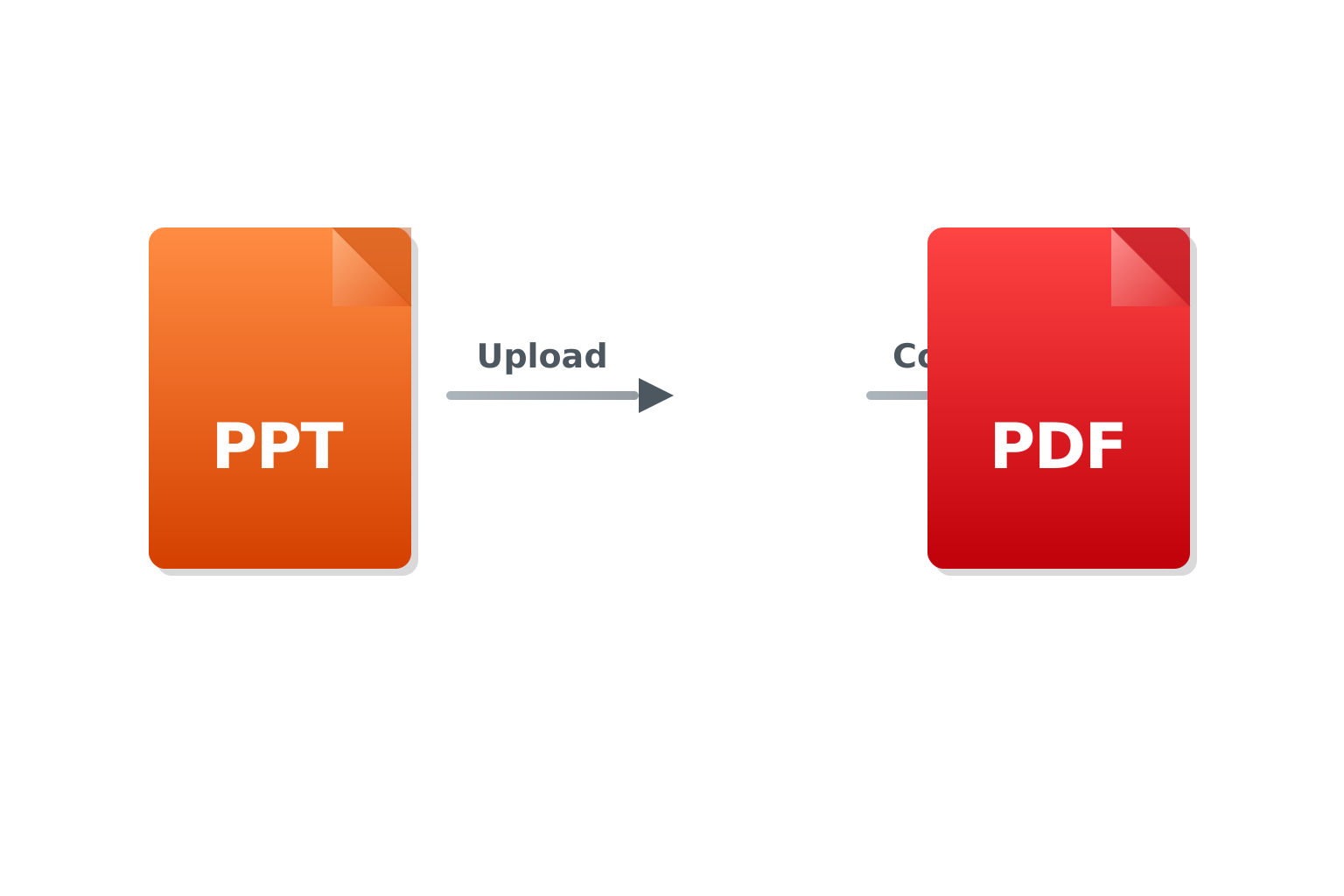
Upload Your PowerPoint File
Click the "Choose File" button and select your .pptx or .ppt file from your device. You can also drag and drop the file directly onto the upload area. Files up to 100MB are supported and transmitted over an encrypted HTTPS connection.
Start the Conversion
Once your file is uploaded, click the "Convert to PDF" button. Our system processes each slide, embedding fonts and preserving your layout exactly as it appears in PowerPoint. Conversion usually completes within a few seconds.
Download Your PDF File
After conversion completes, your PDF will automatically download to your device. Open it to verify the result — all slides, images, and text should appear exactly as in the original presentation.
Tips for Best Conversion Results
Embed Fonts Before Converting
If your presentation uses custom or downloaded fonts, embed them before uploading. In PowerPoint, go to File → Options → Save → check "Embed fonts in the file." This prevents font substitution in the output PDF and ensures text looks exactly right.
Use High-Resolution Images
Low-resolution images in PowerPoint will appear the same — or worse — in the PDF. Before converting, replace any blurry or pixelated images with higher-resolution versions to ensure a professional result.
Check Your Slide Dimensions
Standard 16:9 widescreen slides and older 4:3 slides produce different PDF page sizes. If consistent page dimensions matter — for example when printing or binding — confirm your slide size in Design → Slide Size before converting.
Common Issues and Solutions
Fonts Look Different in the PDF
This happens when custom fonts aren't embedded in the source file. Open your .pptx, go to File → Options → Save, check "Embed fonts in the file," save the file, then re-upload for conversion.
Animations and Transitions Are Missing
PDFs are static documents — animations, slide transitions, and embedded videos cannot be preserved. Each slide becomes a static page. If you need interactive content, consider sharing the original .pptx file instead, and use the PDF only for read-only distribution.
Slide Notes Are Not Included
By default, slide notes are not included in the PDF output. If you need notes included, export directly from PowerPoint using File → Save As → PDF and select the "Notes Pages" layout option before uploading your file.
Images Appear Blurry in the PDF
The source images in your presentation are likely low-resolution. Replace them with higher-quality versions directly in PowerPoint, then re-upload and convert again.
Frequently Asked Questions
Is the PPT to PDF converter free?
Yes. Core workflow is free for standard usage, and limits are shown on this page.
Will my animations be preserved in the PDF?
No. PDF is a static format — animations, transitions, and embedded videos are not supported. Each slide becomes a static page in the output PDF. For interactive presentations, share the original .pptx file directly.
Can I convert a password-protected PowerPoint file?
You'll need to remove the password protection in PowerPoint first. Go to File → Info → Protect Presentation → Remove Password, save the file, then upload and convert.
What PowerPoint formats are supported?
We support both .pptx (PowerPoint 2007 and later) and .ppt (older format). We recommend using .pptx for the most accurate and reliable conversion results.
How long does the conversion take?
Most presentations convert in 5–15 seconds. Very large files with 100+ slides or many high-resolution images may take up to a minute. The page will notify you as soon as your file is ready to download.