How to Convert PDF to Word
This guide explains how to convert PDF files into editable Word documents using our online converter. Follow the steps below to get started.
Quick Start
Ready to convert your PDF file now? Use our online converter to get started immediately.
Go to PDF to Word Converter →Step-by-Step Conversion Process
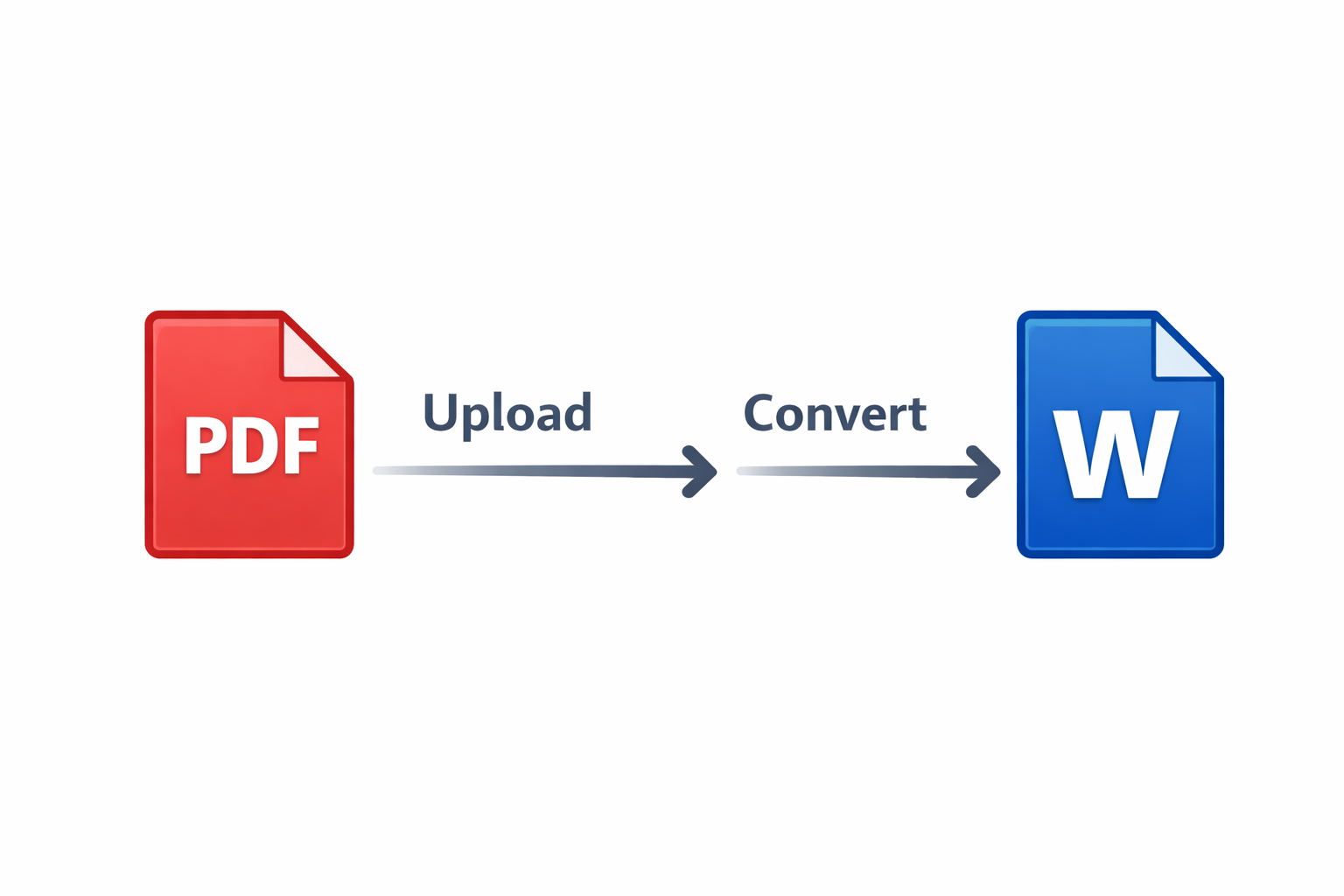
Upload Your PDF File
Click the "Choose PDF File" button and select the PDF document you want to convert from your device. You can also drag and drop the file directly onto the page.
Start the Conversion
Once your file is uploaded, click the "Convert to Word" button. Our system will immediately begin processing your PDF and converting it to an editable Word document (.docx format).
Download Your Word File
After the conversion completes (usually within seconds), your Word file will automatically download to your device. Open it in Microsoft Word, Google Docs, or any compatible word processor to edit.
Tips for Best Conversion Results
Use PDFs with Selectable Text
PDFs created from word processors or that contain selectable text convert more accurately than scanned images. If you can select and copy text from your PDF, it will convert well.
Scanned PDFs May Require OCR
If your PDF is a scanned image or photo of a document, the text may not be directly selectable. These files can still convert, but accuracy depends on image quality. For best results, use clear, high-resolution scans.
Review After Conversion
After conversion, review your Word document to ensure formatting, images, and text appear correctly. Complex layouts or unusual fonts may require minor adjustments, which you can easily make in Word.
Common Issues and Solutions
Formatting Looks Different
Some complex PDF layouts may not convert accurately due to differences between PDF and Word formatting. You can manually adjust spacing, fonts, or images in Word after conversion.
Missing or Garbled Text
This usually happens with scanned PDFs or those using non-standard fonts. Try using a higher quality PDF or check if the original PDF has embedded fonts.
File Size is Too Large
Our converter supports files up to 50 MB. If your PDF is larger, try splitting it into smaller sections or compressing it before conversion.
Frequently Asked Questions
Is the PDF to Word converter really free?
Yes. Core PDF to Word conversion is available without payment, with limits shown on this page.
Will my PDF formatting be preserved?
Our converter aims to preserve formatting, but some complex layouts may require minor adjustments. Text, images, and basic formatting typically convert accurately.
Can I convert scanned PDFs?
Yes, scanned PDFs can be converted, though accuracy depends on scan quality. Clear, high-resolution scans produce better results.
How long does conversion take?
Most PDF files convert to Word in under 10 seconds. Larger files with many pages may take slightly longer.
What Word format is created?
The converter creates .docx files (Word 2007 and later format) which are compatible with Microsoft Word, Google Docs, and other word processors.