How to Convert PDF to PowerPoint
This guide shows how to convert PDF documents to editable PowerPoint presentations (PPT and PPTX) using our online converter, so you can update slides after export.
Quick Start
Ready to convert your PDF to PowerPoint now? Use our online converter to transform your documents immediately.
Go to PDF to PowerPoint Converter →Step-by-Step Conversion Process
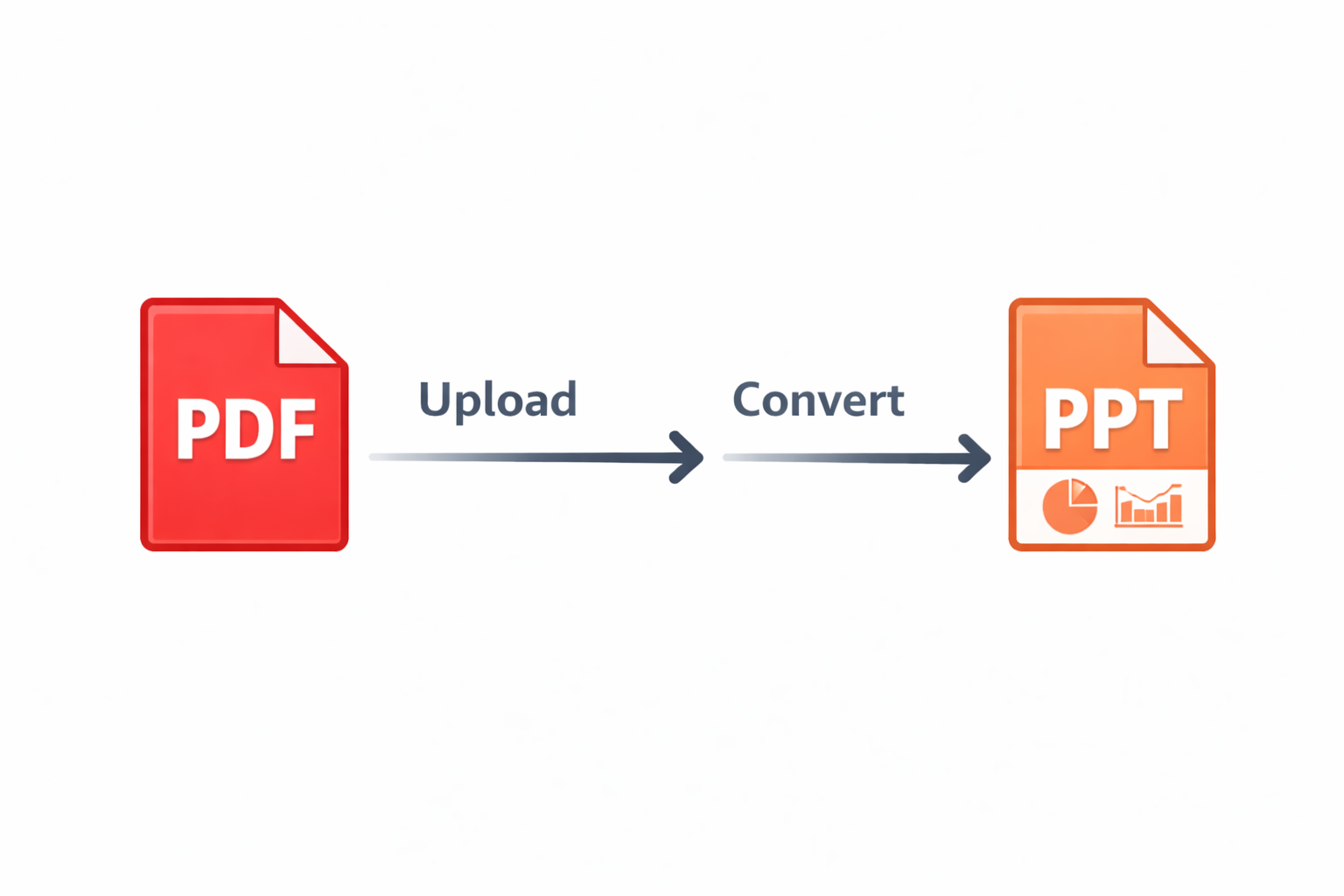
Upload Your PDF File
Click the 'Choose PDF File' button and select the PDF document you want to convert from your device. You can also drag and drop the file directly onto the page. Our converter supports multi-page PDFs and presentations of any size.
Start the Conversion
Once your file is uploaded, click the 'Convert to PowerPoint' button. Our advanced OCR and layout recognition technology will process your PDF and intelligently convert each page into editable PowerPoint slides while preserving the original layout, text, and images.
Download Your PowerPoint File
After the conversion completes (typically within seconds to a minute depending on file size), your PPTX file will automatically download. Each PDF page becomes a separate slide that you can edit, rearrange, and customize in PowerPoint, Keynote, or Google Slides.
Why Convert PDF to PowerPoint?
Make PDFs Editable
Transform static PDF documents into fully editable presentations where you can modify text, images, and layouts
Reuse Presentation Content
Repurpose existing PDF slides, reports, or documents as PowerPoint presentations for meetings and training
Update Legacy Files
Convert old PDF presentations back to PowerPoint format to update content, fix errors, or refresh branding
Extract Slide Decks
Extract presentation slides from PDF reports, whitepapers, or eBooks to create standalone slide decks
Tips for Best Conversion Results
Use High-Quality Source PDFs
For best results, start with high-resolution, clearly formatted PDFs. PDFs created directly from PowerPoint or other presentation software convert more accurately than scanned documents. If your PDF contains scanned images, the text may be converted as images rather than editable text.
Check Text Recognition
After conversion, review the PowerPoint file to ensure text was properly recognized and is editable. Some complex layouts, unusual fonts, or low-quality scans may result in text being placed as images. You can manually edit or retype any text that was not recognized correctly.
Review Image Placement
Images from your PDF will be placed on corresponding slides, but you may need to adjust their position or size to perfect the layout. Check each slide and use PowerPoint's alignment and formatting tools to fine-tune the appearance. Complex graphics may require some manual adjustment.
Common Issues and Solutions
Text Appears as Images Instead of Editable Text
This typically happens with scanned PDFs or PDFs with unusual fonts. The converter preserves the visual appearance but cannot always extract editable text. Solution: Use OCR software first if your PDF is a scan, or manually retype important text sections in PowerPoint after conversion.
Layout Differs from Original PDF
Complex layouts with overlapping elements, text boxes, or intricate designs may not convert accurately. Solution: After conversion, use PowerPoint's editing tools to adjust element positions. PowerPoint's alignment guides and grid features can help you recreate the original layout precisely.
Fonts Look Different or Are Substituted
If the original PDF uses fonts not installed on your system, PowerPoint will substitute similar fonts. Solution: Install the original fonts on your computer before opening the converted file, or manually change fonts in PowerPoint to match your desired appearance.
Frequently Asked Questions
Is the PDF to PowerPoint converter free for core use?
Yes, our PDF to PowerPoint converter is free to use with no hidden charges, subscriptions, or conversion limits. Convert multiple files at no cost.
Will the layout and formatting be preserved?
Our converter uses advanced layout recognition to preserve the original structure, text formatting, images, and overall design as accurately as possible. Some manual adjustment may be needed for complex layouts.
Can I edit the text after conversion?
Yes, if the PDF contains actual text (not scanned images), the converted PowerPoint file will have editable text that you can modify, format, and update just like any normal presentation.
What file format does the converter output?
The converter outputs PPTX files, the modern PowerPoint format compatible with PowerPoint 2007 and later, as well as Google Slides, Keynote, and other presentation software.
How long does the conversion take?
Conversion time depends on file size and complexity. Most PDFs convert within seconds to one minute. Larger files with many pages or complex graphics may take slightly longer.