How to Edit a PDF Online
PDF files are designed for consistent viewing — but that doesn't mean you can't change them. With PDFMagic's online PDF editor, you can add or edit text, insert annotations, fill out form fields, draw on pages, and more. No software to install, no account required. Just upload your PDF and start editing right in your browser.
Quick Start
Ready to edit your PDF now? Open the free online editor and start making changes immediately.
Go to PDF Editor →Step-by-Step Editing Process
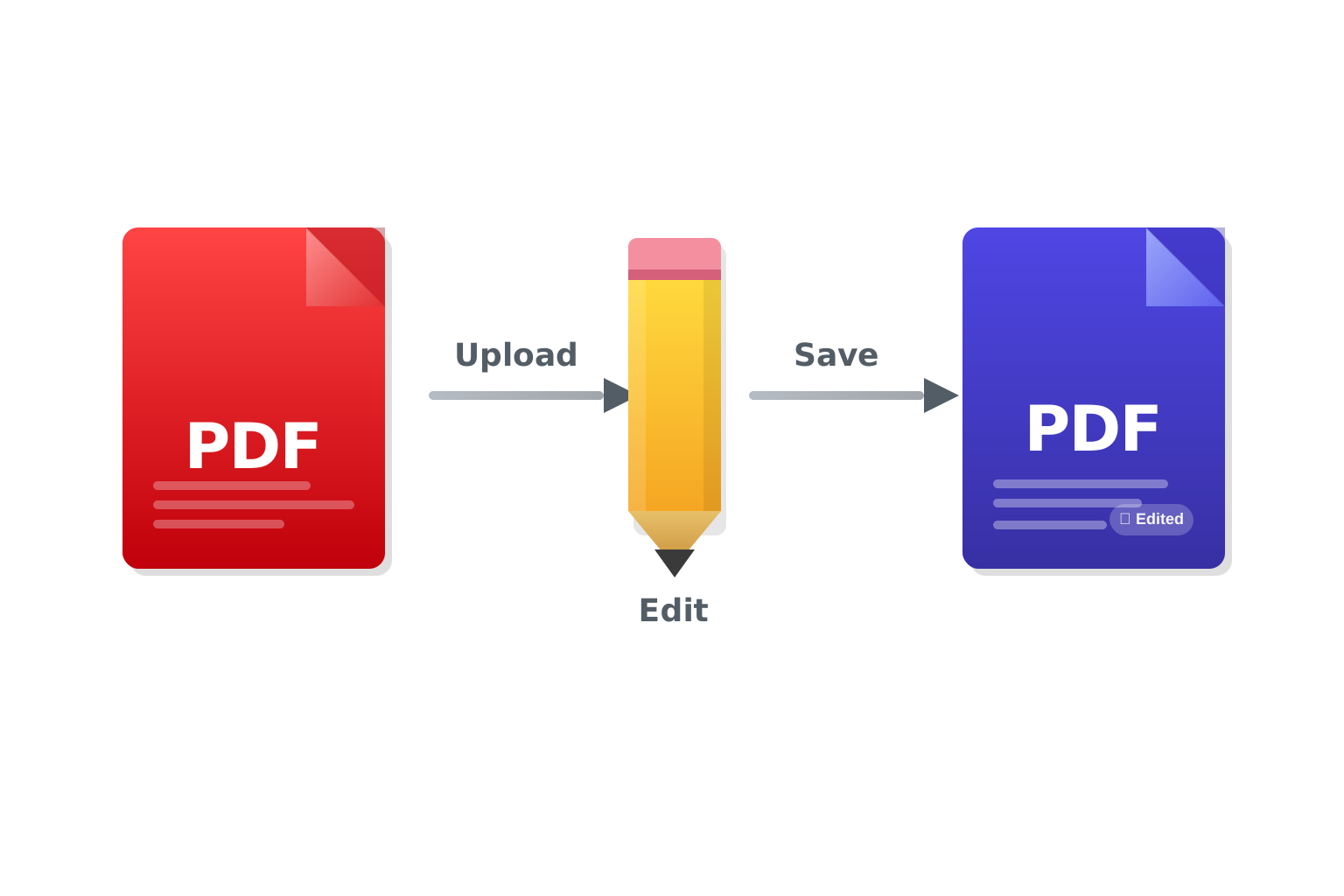
Upload Your PDF File
Click the "Choose File" button or drag and drop your PDF directly onto the upload area. Files up to 100MB are supported. Your file is transmitted over an encrypted HTTPS connection and never shared with third parties.
Edit Your PDF
Use the toolbar to select an editing tool — add text, highlight content, draw shapes, add a signature, fill in form fields, or insert images. Click anywhere on the page to place content. All changes are visible in real time.
Save and Download
When you're done editing, click "Save" or "Download" to export your modified PDF. The output file preserves all original content alongside your edits, and is fully compatible with Adobe Reader, browsers, and any standard PDF viewer.
Tips for Editing PDFs Effectively
Match the Original Font Style
When adding new text, try to match the font family, size, and color of the surrounding text. Use the text tool's style options to adjust before placing your text. This keeps the document looking consistent and professional.
Use Annotation Tools for Reviewing
If you're reviewing a document rather than permanently altering it, use highlights, sticky notes, and underlines instead of editing the text directly. Annotations are clearly visible and easier to track or remove later.
Flatten Before Sharing Sensitive Edits
After editing, use the "Flatten" option if available before sending the file. Flattening merges all annotation layers into the base document, preventing recipients from easily removing or altering your added content.
Common Issues and Solutions
Cannot Select or Edit Existing Text
This typically means the PDF is either scanned (an image) or has text editing restrictions set by the creator. For scanned documents, you'll need to convert the PDF to Word first to extract the text. For restricted PDFs, the password or permission must be removed before editing.
Added Text Appears in the Wrong Position
Text placement uses the PDF's coordinate system. If the page has been rotated or has unusual margins, text may appear offset. Try zooming in before clicking to place text, or use the position controls in the toolbar to fine-tune placement.
The PDF Looks Different After Editing
Some complex PDFs use embedded fonts or advanced layout features that may shift slightly after editing. For best results, avoid editing in areas with tightly packed or overlapping text. If layout accuracy is critical, consider converting to Word, editing there, then converting back.
Form Fields Are Not Fillable
Not all PDFs contain interactive form fields. If clicking on a form area does nothing, the form is likely a static image or flat text. Use the text tool to type directly over the form fields instead, placing your answers visually on the page.
Frequently Asked Questions
Is the online PDF editor free?
Yes. Core editing workflow is free for standard usage, and no forced watermark is added by default.
Can I edit the original text in a PDF?
You can edit text in PDFs that contain selectable text. Scanned PDFs are images and require OCR conversion first. Try our PDF to Word converter to extract and edit the text, then convert back to PDF.
Can I add a signature to my PDF?
Yes. Use the signature tool to draw your signature, type it in a handwritten font, or upload an image of your signature. Place it anywhere on the document and resize as needed.
Will my edits be saved permanently?
Once you download the edited PDF, your changes are baked into the file. There is no cloud save — the editor is session-based, so download your file before closing the browser tab.
Can I edit a password-protected PDF?
Password-protected PDFs must have their restrictions removed before editing. Open the file in Adobe Reader or another PDF reader, remove the password, save the file, then upload it to the editor.