How to Compress a PDF Online
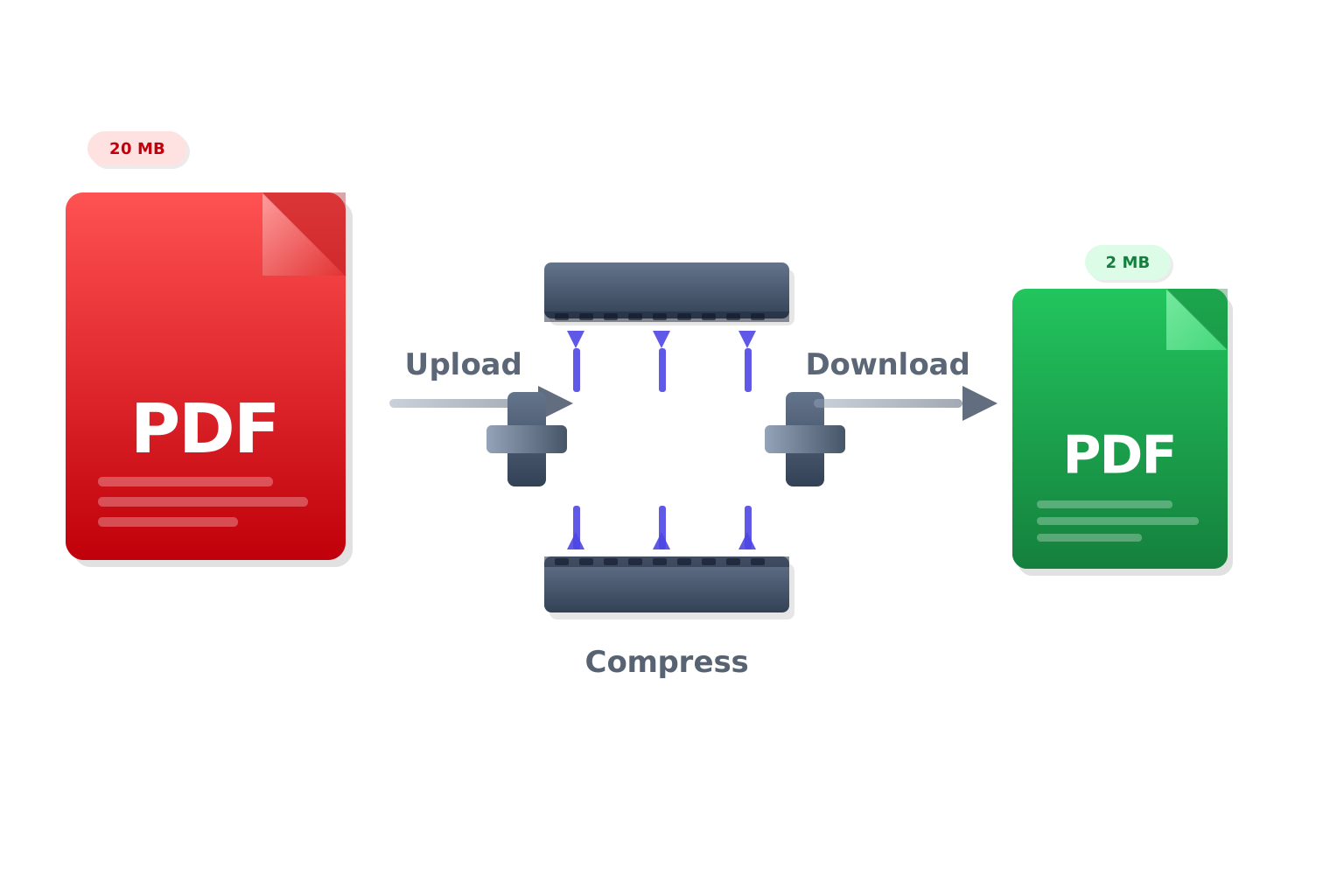
Large PDF files are a headache — they're slow to upload, hard to email, and eat up storage. PDFMagic's free online PDF compressor reduces your file size significantly without requiring any software. Whether you're sharing a presentation, submitting a document, or archiving files, compression makes it faster and easier. Upload your PDF and get a smaller file in seconds.
Quick Start
Ready to shrink your PDF right now? Use our free online compressor to reduce file size in seconds.
Go to PDF Compressor →Step-by-Step Compression Process
Upload Your PDF File
Click the "Choose File" button or drag and drop your PDF onto the upload area. Files up to 100MB are supported. Your file is transferred over an encrypted HTTPS connection and automatically deleted from our servers after processing.
Choose a Compression Level
Select your preferred compression level — Low (minimal quality loss, moderate size reduction), Medium (balanced quality and size), or High (maximum size reduction, some quality trade-off). For most documents and presentations, Medium is the recommended setting.
Download Your Compressed PDF
Click "Compress PDF" and your file will be processed in seconds. Once ready, download the compressed PDF. The output file is a standard PDF compatible with all viewers, printers, and devices — just smaller.
Tips for the Best Compression Results
Use High Compression for Scanned Documents
Scanned PDFs often contain large raw image data with no embedded fonts or vector elements. These files respond extremely well to High compression — it's common to reduce a 20MB scanned document to under 3MB with minimal visible quality loss.
Use Low Compression for Print-Ready Files
If your PDF will be professionally printed, use Low compression to preserve image resolution and color accuracy. High compression can reduce image DPI below the 300 DPI minimum typically required for print quality.
Compress Before Emailing or Uploading
Most email services cap attachments at 10–25MB. If your PDF is larger, compress it before sending. Similarly, many web forms and portals impose file size limits — compressing first saves time and avoids upload errors.
Common Issues and Solutions
File Size Barely Changed After Compression
This usually means your PDF is already optimized, or it contains mostly vector graphics and text — which are already highly compact. PDFs with many high-resolution photos compress the most. Try switching to High compression level if you haven't already.
Images Look Blurry After Compression
High compression significantly reduces image resolution. If image quality matters — for example in a photo portfolio or print-ready brochure — use Low or Medium compression instead. For text-heavy documents, blurriness is rarely noticeable.
The Compressed File is Larger Than the Original
This is rare but can happen when reprocessing an already-compressed or highly optimized PDF. In this case, your original file is already as small as it can get. Skip compression and use the original file directly.
Text Becomes Unreadable After Compression
If your PDF uses very small or highly stylized fonts, aggressive compression can affect legibility. Switch to Low compression to preserve text clarity. For critical documents like contracts or legal forms, always use Low compression.
Frequently Asked Questions
Is the PDF compressor free?
Yes. Core compression workflow is free for standard usage, and output does not include forced watermark.
How much can you reduce a PDF file size?
It depends on the content. PDFs with many images can often be reduced by 50–90%. Text-only or already-compressed PDFs may see 5–20% reduction. Scanned documents typically compress the most.
Will compression affect the text in my PDF?
Text and vector graphics are largely unaffected by compression — they're already stored efficiently. Compression mainly targets embedded images. On Low and Medium settings, text quality is never reduced.
Is my file safe to upload?
Yes. All uploads use encrypted HTTPS connections. Files are processed on our servers and automatically deleted after your session ends. We do not store, read, or share your documents.
Can I compress a password-protected PDF?
Password-protected PDFs need to have their restrictions removed before compression. Open the file in a PDF reader, remove the password protection, save the file, then upload it for compression.