How to Merge PDF Files Online
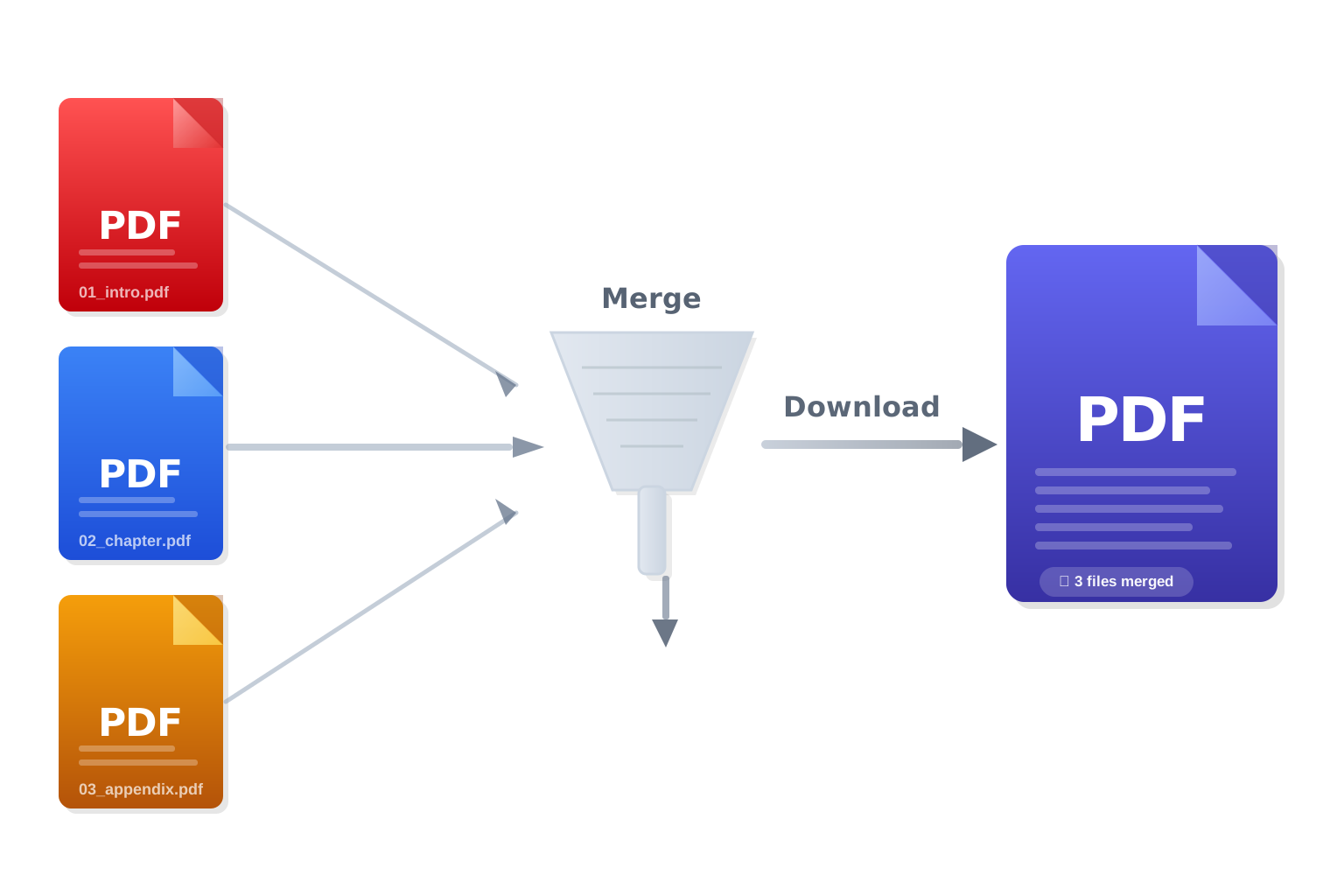
Got multiple PDF files that belong together? Whether it's a report split across several documents, scanned pages saved separately, or contracts that need to be combined into one file — PDFMagic's free online PDF merger lets you join them in seconds. Upload your files, arrange them in the right order, and download a single merged PDF. No software, no account, no hassle.
Quick Start
Ready to combine your PDFs right now? Open the free online merger and upload your files to get started.
Go to PDF Merger →Step-by-Step Merging Process
Upload Your PDF Files
Click "Choose Files" or drag and drop multiple PDF files onto the upload area at once. You can add as many files as you need. Each file is transferred over an encrypted HTTPS connection and processed securely on our servers.
Arrange the Order
Once uploaded, your files will appear as a list. Drag and drop them to set the order they should appear in the final merged document. The file at the top becomes the first section of the output PDF.
Merge and Download
Click "Merge PDF" to combine all files into one. Processing usually takes just a few seconds. When complete, download your merged PDF — a single file containing all pages from every document, in the order you specified.
Tips for Merging PDFs Effectively
Name Your Files Clearly Before Uploading
If you're merging many files, naming them with a numbered prefix before uploading makes ordering much easier — for example: 01_intro.pdf, 02_chapter1.pdf, 03_chapter2.pdf. Some tools will auto-sort by filename, saving you drag-and-drop time.
Compress Large Files Before Merging
Merging several large PDFs can produce a very large output file. If final file size matters — for example for email or a web upload — compress each PDF individually using our PDF Compressor before merging them together.
Check Page Orientation Consistency
If your source files have mixed page orientations (some portrait, some landscape), these will be preserved as-is in the merged output. Review each file's orientation in advance and rotate pages if needed before uploading to ensure a consistent reading experience.
Common Issues and Solutions
One of My Files Won't Upload
The file may be password-protected, corrupted, or in an unsupported format. Verify the file opens normally in a PDF reader. If it's password-protected, remove the restriction first. If it appears corrupted, try re-exporting or re-saving the original document as a PDF.
The Page Order in the Merged PDF Is Wrong
Page order is determined by the order of your uploaded files and the internal page sequence within each file. Double-check the file order in the upload list before merging. If internal pages need reordering, split and rearrange them first using a PDF editor, then re-upload.
The Merged File Is Very Large
The merged PDF inherits the content of all source files — if the inputs are large, the output will be too. After merging, run the combined file through our PDF Compressor to reduce the total file size without affecting readability.
Fonts or Formatting Look Different After Merging
Merging preserves each file's content exactly as-is. If fonts look different, they may not have been embedded in the source PDF. Re-export the problematic file from its original application with font embedding enabled, then merge again.
Frequently Asked Questions
Is the PDF merger free?
Yes. Core merge workflow is free for standard usage, and output does not include forced watermark.
How many PDF files can I merge at once?
You can merge multiple files in a single session. There is no strict limit on the number of files, though very large batches may take longer to process. Each individual file must be under 100MB.
Will the merged PDF preserve bookmarks and links?
Internal bookmarks within each source file are generally preserved. Hyperlinks pointing to external URLs are also kept. However, cross-document links between the source files will not be automatically updated in the merged output.
Can I merge password-protected PDFs?
Password-protected files must have their restrictions removed before they can be merged. Open each protected file in a PDF reader, remove the password, save the file, then upload it for merging.
Is my data safe when uploading multiple files?
Yes. All file transfers use encrypted HTTPS connections. Files are removed after processing/session cleanup according to our retention policy.