How to Convert Markdown to PDF
This guide shows how to convert Markdown files to formatted PDF documents using our online converter. Export .md files to shareable PDFs while preserving headings, code blocks, tables, and structure.
Quick Start
Ready to convert your Markdown file to PDF now? Use our online converter to create beautiful PDFs quickly.
Go to Markdown to PDF Converter →Step-by-Step Conversion Process
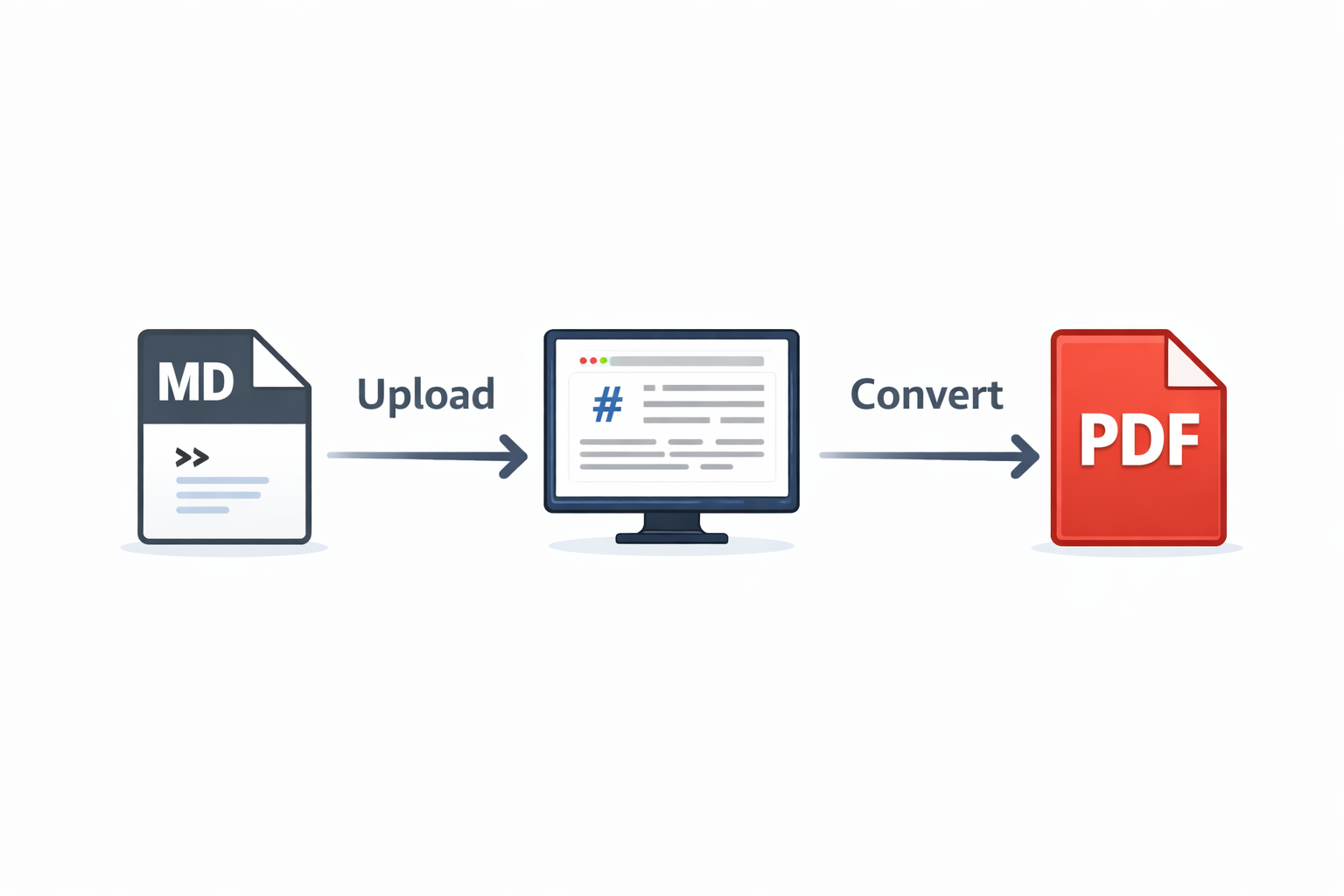
Upload Your Markdown File
Click the 'Choose Markdown File' button and select the .md file you want to convert from your device. You can also drag and drop the file directly onto the page. Our converter supports standard Markdown syntax including GitHub Flavored Markdown (GFM).
Start the Conversion
Once your file is uploaded, click the 'Convert to PDF' button. Our converter will process your Markdown content and render it into a beautifully formatted PDF, preserving headers, lists, code blocks, tables, links, bold, italic, and all other formatting elements.
Download Your PDF File
After the conversion completes (usually within seconds), your PDF file will automatically download. The PDF will have clean, professional formatting with proper typography, making it perfect for documentation, README files, reports, or any text content you want to share.
Why Convert Markdown to PDF?
Professional Documentation
Turn technical documentation, README files, and guides into polished PDFs for easy distribution and archiving
Easy Sharing
Share your Markdown content with anyone without requiring them to have a Markdown viewer or editor
Better Formatting
Create beautifully styled documents with proper typography, code highlighting, and consistent layout
Universal Compatibility
PDFs work on any device or platform, making your Markdown content accessible to everyone
Tips for Best Conversion Results
Use Standard Markdown Syntax
For best results, use standard Markdown syntax or GitHub Flavored Markdown. Our converter supports headings (#, ##, ###), lists (-, *, 1.), bold (**text**), italic (*text*), code blocks (```), tables, links, and images. Complex custom extensions may not render correctly.
Include Image References Properly
If your Markdown file references images, make sure image URLs are publicly accessible online. Local file paths (like './images/photo.png') will not work in the PDF. Use absolute URLs (like 'https://example.com/photo.png') for images you want to include in the PDF.
Preview Before Converting
For complex Markdown documents, preview your content in a Markdown editor first to ensure formatting looks correct. Check that tables are properly formatted, code blocks use correct syntax highlighting delimiters (```language), and headings use the right level hierarchy.
Common Issues and Solutions
Images Not Appearing in PDF
This happens when image paths are relative or local file references. Solution: Use absolute URLs for all images (e.g., 'https://example.com/image.png' instead of './image.png'). Upload images to an image hosting service or your website first, then reference the public URLs in your Markdown.
Code Blocks Not Formatted Correctly
Improper code block syntax can cause formatting issues. Solution: Ensure code blocks use triple backticks (```) before and after the code. Optionally specify the language for syntax highlighting (```javascript, ```python, etc.). Avoid mixing tab and space indentation within code blocks.
Tables Look Misaligned or Broken
Complex or improperly formatted Markdown tables may not convert accurately. Solution: Use simple table syntax with pipes (
Frequently Asked Questions
Is the Markdown to PDF converter free for core use?
Yes, our Markdown to PDF converter is free to use with no hidden charges, subscriptions, or file size limits. Convert multiple Markdown files at no cost.
What Markdown syntax is supported?
Our converter supports standard Markdown and GitHub Flavored Markdown (GFM), including headers, lists, bold, italic, code blocks, tables, links, blockquotes, horizontal rules, and inline images.
Will code syntax highlighting be preserved?
Yes, if you specify the language in your code blocks (e.g., ```javascript), the PDF will include syntax highlighting for better readability. Common languages like Python, JavaScript, Java, CSS, and HTML are supported.
Can I customize the PDF styling?
The converter applies clean, professional default styling. For custom styling, you can embed inline HTML and CSS in your Markdown file, though advanced customization options are limited in the free online version.
Is my Markdown content secure during conversion?
Yes. Files are processed over secure transfer and removed after processing/session cleanup according to our retention policy.