How to Convert Excel to PDF
This guide shows how to convert Microsoft Excel spreadsheets (XLS and XLSX) to PDF format using our online converter. Follow the steps below to export clean PDF versions of your spreadsheets.
Quick Start
Ready to convert your Excel spreadsheet now? Use our online converter to get started immediately.
Go to Excel to PDF Converter →Step-by-Step Conversion Process
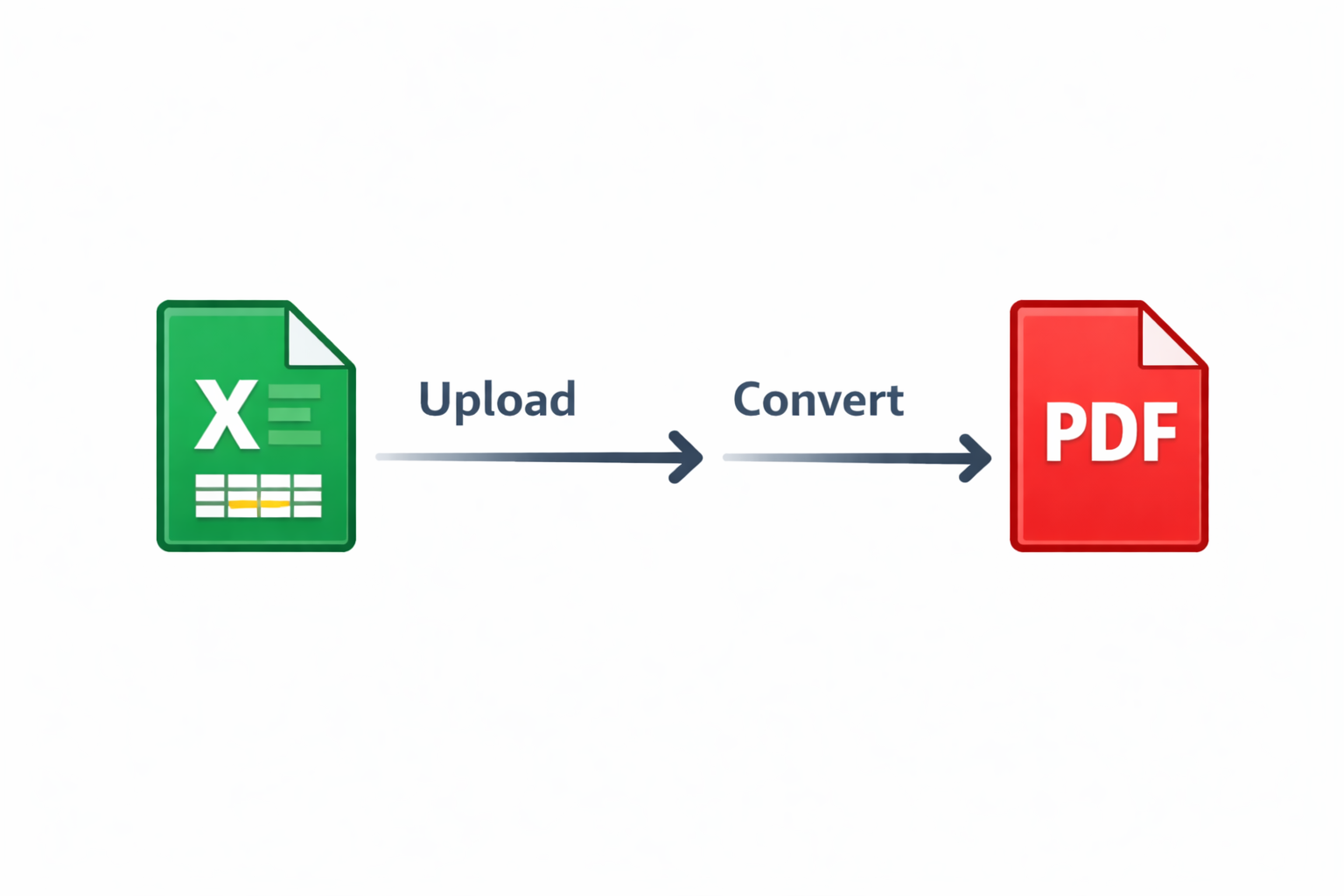
Upload Your Excel File
Click the "Choose Excel File" button and select the XLS or XLSX spreadsheet you want to convert from your device. You can also drag and drop the file directly onto the page.
Start the Conversion
Once your file is uploaded, click the "Convert to PDF" button. Our system will immediately process your Excel spreadsheet and convert all worksheets to PDF format while preserving tables, charts, and formatting.
Download Your PDF File
After the conversion completes (usually within seconds), your PDF file will automatically download. Each worksheet will typically be converted to a separate page in the PDF, ready to share or print.
Why Convert Excel Spreadsheets to PDF?
Easy Sharing
Share financial reports and data without requiring Excel software
Preserve Data
Lock your data in a format that prevents accidental editing or formula changes
Professional Reports
Create professional-looking invoices, statements, and reports from Excel templates
Consistent Printing
Ensure your spreadsheets print exactly as they appear with consistent formatting
Tips for Best Conversion Results
Finalize Your Spreadsheet
Complete all calculations, formatting, and data entry before converting. Once in PDF format, formulas and cell values cannot be edited. Review your spreadsheet carefully to ensure all data is accurate and complete.
Adjust Page Layout
Set your print area, page orientation, and margins in Excel before converting. Use Excel's Page Layout view to see exactly how your spreadsheet will look as a PDF. This ensures proper page breaks and optimal layout.
Consider Multiple Worksheets
If your Excel file contains multiple worksheets, each sheet will typically convert to a separate page in the PDF. Review all sheets before conversion to ensure they're formatted consistently and contain the data you want to share.
Common Issues and Solutions
Charts or Images Cut Off
If charts or images are cut off in the PDF, adjust your print area in Excel before conversion. Go to Page Layout > Print Area > Set Print Area to define exactly what should be included in the PDF.
Too Many Pages in PDF
Large spreadsheets may span many pages. Use Excel's Page Break Preview to adjust where pages break. You can also adjust scaling in Page Layout settings to fit more content on each page.
Formulas Show Instead of Values
This shouldn't happen with our converter as it captures calculated values, not formulas. If you see formula text, make sure formulas are calculating correctly in Excel before conversion.
Frequently Asked Questions
Is the Excel to PDF converter really free?
Yes. Core Excel to PDF conversion is available without payment, with limits shown on this page.
Will my tables and charts be preserved?
Yes, our converter preserves tables, charts, cell formatting, and layout. The PDF will look exactly like your Excel spreadsheet.
Can I convert both XLS and XLSX files?
Yes, our converter supports both XLS (Excel 97-2003) and XLSX (Excel 2007 and later) file formats.
What happens to formulas in the conversion?
Formulas are converted to their calculated values in the PDF. The PDF will show the results of calculations, not the formula text.
Can I convert files with multiple worksheets?
Yes, Excel files with multiple worksheets can be converted. Each worksheet typically becomes a separate page in the PDF.