How to Add a Watermark to a PDF
Watermarks protect your documents, assert ownership, and signal confidentiality. Whether you need to stamp 'CONFIDENTIAL', 'DRAFT', or your company logo across every page, PDFMagic's free online watermark tool makes it simple. Upload your PDF, customize your watermark text or image, and download the protected file in seconds — no software required.
Quick Start
Ready to watermark your PDF right now? Open the free online tool and get started immediately.
Go to PDF Watermark Tool →Step-by-Step Watermark Process
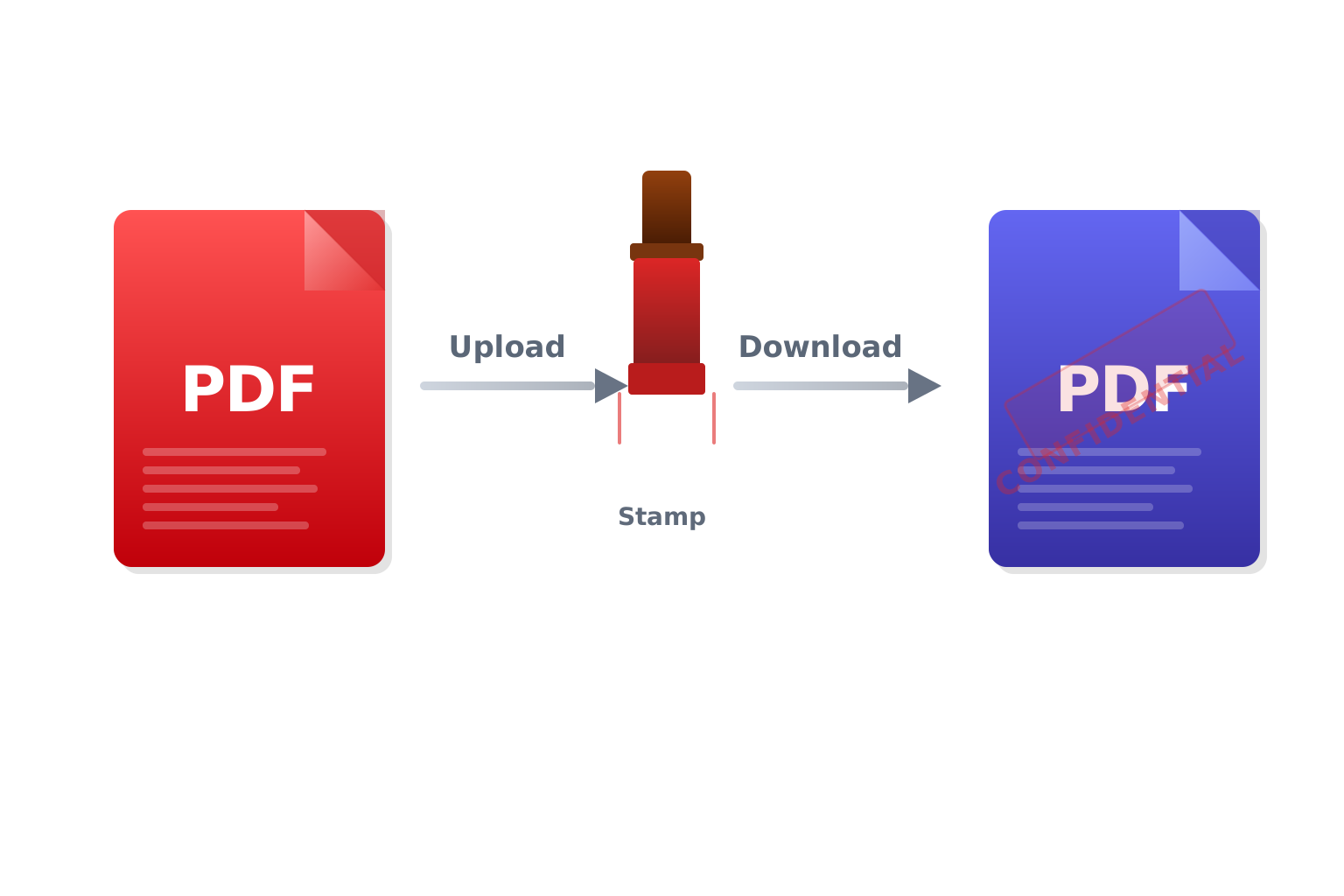
Upload Your PDF File
Click the 'Choose File' button or drag and drop your PDF onto the upload area. Files up to 100MB are supported. All transfers use encrypted HTTPS connections and files are deleted from our servers automatically after processing.
Customize Your Watermark
Enter your watermark text — such as CONFIDENTIAL, DRAFT, or your company name — then adjust the font size, color, opacity, rotation angle, and position on the page. You can preview the result before applying it to all pages.
Download Your Watermarked PDF
Click 'Apply Watermark' to process the file. The watermark will be applied to every page of the document. Once complete, download your watermarked PDF — ready to share, distribute, or archive.
Tips for Effective Watermarks
Use Low Opacity for Readability
A watermark that is too dark or opaque will obscure the document content and make it hard to read. Set opacity between 20% and 40% for a professional look that is clearly visible without interfering with the text or images underneath.
Rotate Diagonally for Maximum Coverage
A diagonal watermark at 45 degrees is harder to crop or remove than one placed horizontally at the top or bottom. For documents requiring strong protection, use a diagonal placement that spans the full page.
Use a Consistent Watermark Across Document Sets
If you regularly send out documents with the same watermark, note your settings so you can replicate them exactly each time. Consistent watermarks across a document set look more professional and are easier to recognize as authentic.
Common Issues and Solutions
The Watermark Is Too Hard to Read
If the watermark text itself is difficult to read, increase the font size or darken the color. For light-colored backgrounds, use a dark gray or navy watermark. For documents with dark backgrounds or images, use a white or light-colored watermark with higher opacity.
The Watermark Covers Important Content
Adjust the position and opacity settings to move the watermark away from critical text or figures. Alternatively, reduce the font size and use a higher repetition or tiling setting if available, so the watermark appears as a subtle pattern rather than one large centered stamp.
The Watermark Does Not Appear on All Pages
The watermark tool applies the stamp to all pages by default. If some pages appear without the watermark after downloading, the PDF may contain pages with unusual dimensions or rotation. Re-open the output file in a viewer and scroll through all pages to confirm.
My PDF Cannot Be Uploaded
The file may be password-protected or corrupted. If password-protected, remove the restriction in a PDF reader first, save the file, then re-upload. If the file appears corrupted, try re-exporting it from the original application.
Frequently Asked Questions
Is the watermark tool free?
Yes. Core watermark workflow is free for standard usage. PDFMagic does not add extra forced watermark beyond your own settings.
Can I add an image watermark instead of text?
Yes. You can upload a logo or image file to use as a watermark instead of text. PNG files with a transparent background work best, as the transparency is preserved when the image is stamped onto the PDF pages.
Will the watermark prevent someone from editing the PDF?
A standard watermark is a visual deterrent, not a technical lock. It signals ownership and discourages unauthorized use, but does not prevent someone with editing tools from attempting to remove it. For stronger protection, combine the watermark with PDF password restrictions.
Can I remove a watermark that was already added?
Watermarks added by this tool are embedded into the page content. They cannot be removed by simply selecting and deleting them. Removal requires specialized PDF editing software and results may vary depending on how the watermark was applied.
Will the watermark affect the file size?
Text watermarks add a negligible amount of data and have virtually no impact on file size. Image watermarks may increase the file size slightly depending on the resolution and size of the image used.