If you need to convert PDF to Word and keep formatting, the short answer is this: clean text PDFs usually convert well, while table-heavy files still need a little cleanup. In my test, the DOCX was usable in both cases, but only one of them felt close to “ready to send.”
How I tested PDF to Word conversion
I convert PDF files to Word often in real work, so this was not a synthetic benchmark. I used two normal files in PDFMagic PDF to Word, then opened the exported DOCX in Microsoft Word and reviewed it page by page.
The question I cared about was simple: can I convert PDF to Word online without wrecking layout, tables, and fonts badly enough that I lose time fixing everything?
The two files I used
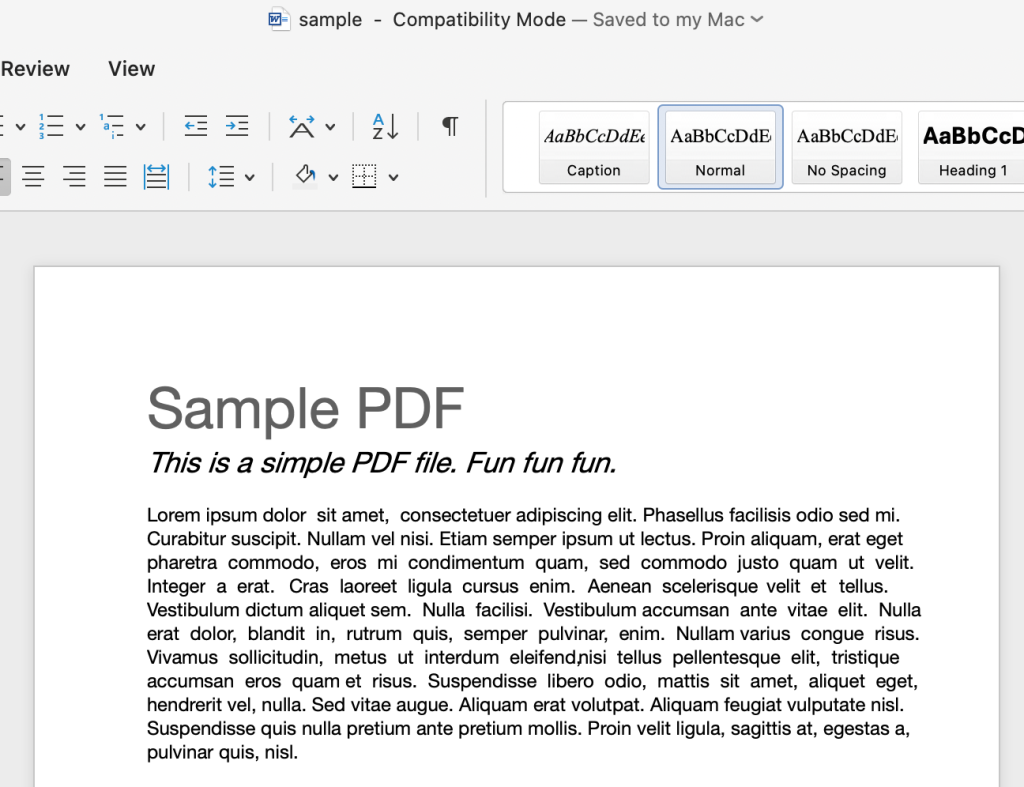
What to notice: this one is mostly plain text with predictable spacing. It is the easy case for PDF to DOCX.
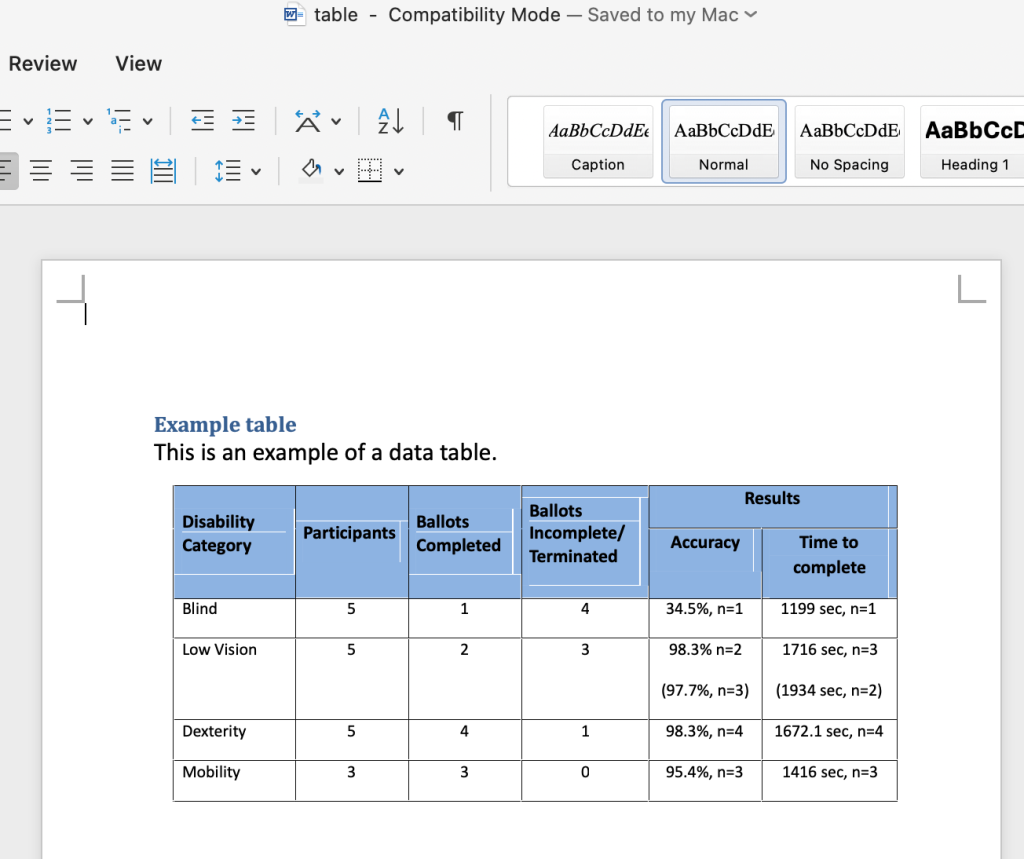
What to notice: tight table structure and alignment pressure. This is where converters usually start drifting.
- File A (simple text): converted cleanly and needed almost no manual edits.
- File B (table-heavy): the output was still workable, but one border, one row height, and a little heading spacing needed touch-up.
If I had to summarize the test in one line, it would be this: the converter gave me a strong working draft, not a guaranteed final document.
Step-by-step: Convert PDF to Word online
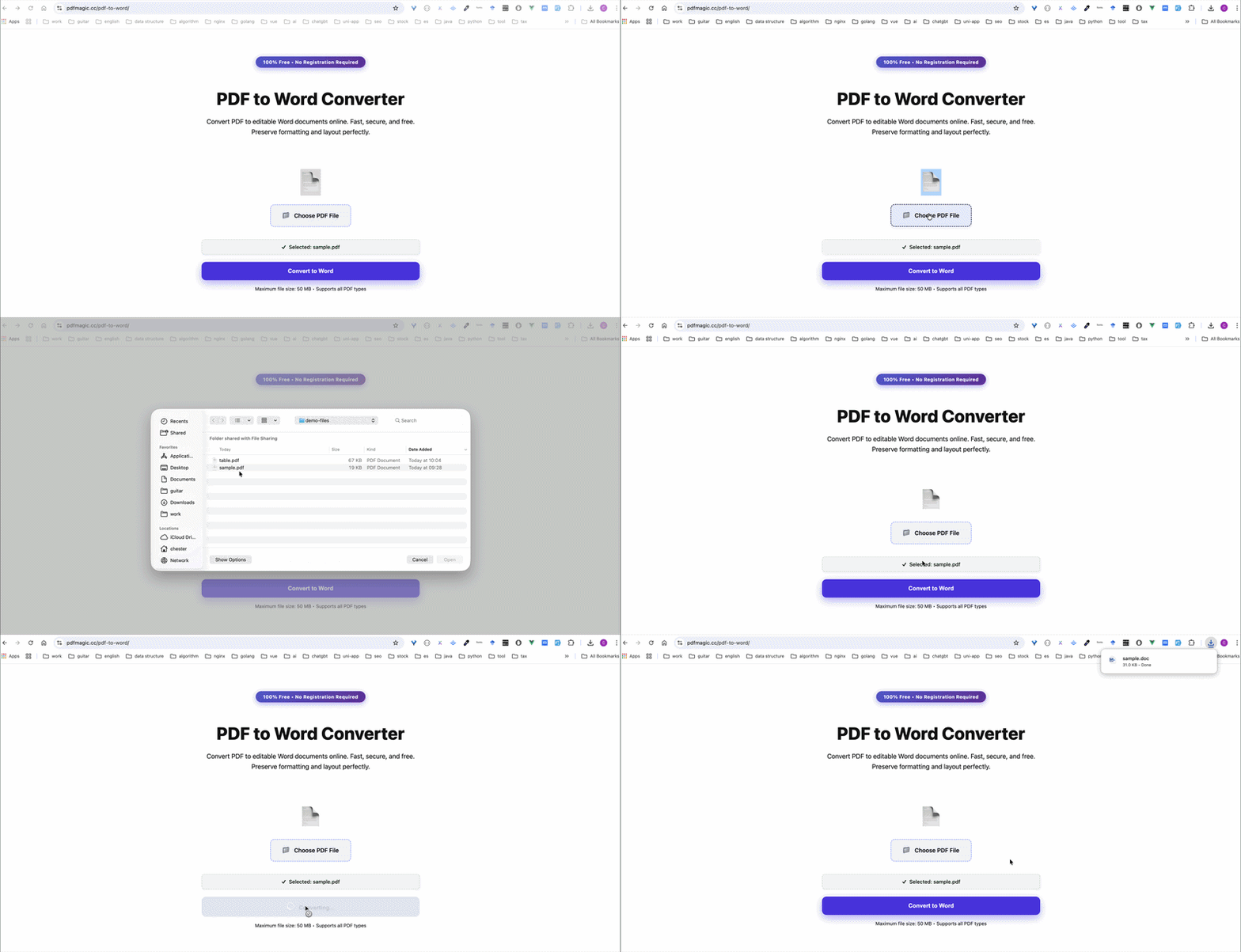
I kept the GIF because this is close to the exact flow I use in normal work.
Step 1: Upload the PDF
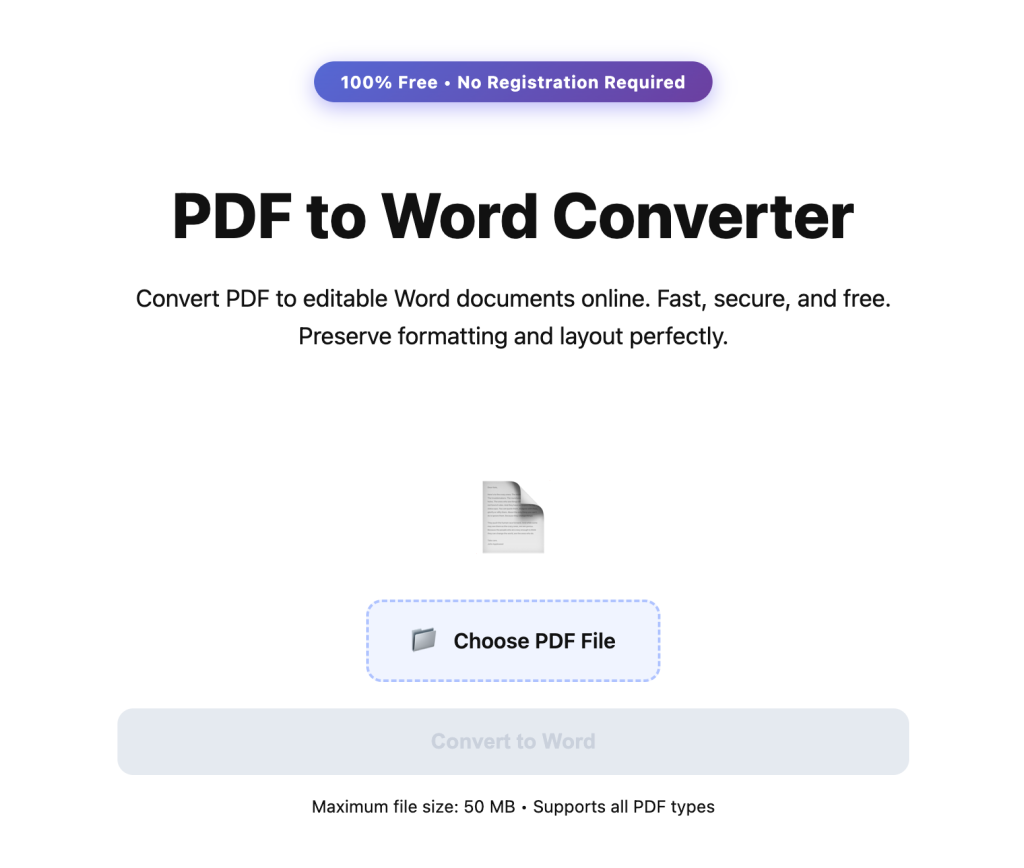
I upload the original file directly. If the PDF is huge, I split it first so the review step is faster and less noisy.
Step 2: Start conversion
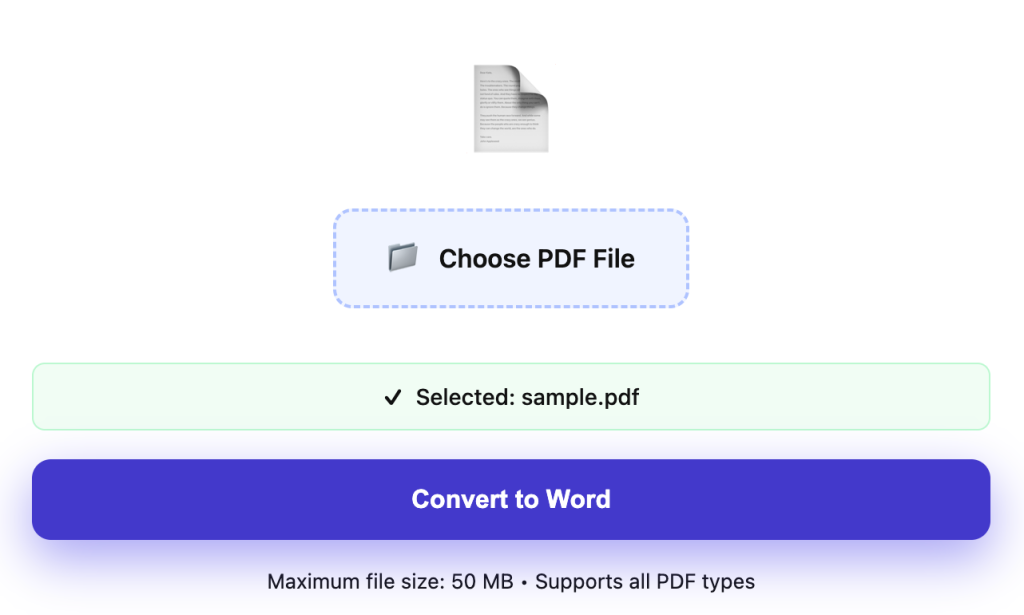
I run the conversion once with stable settings. Repeating the process too many times just makes it harder to compare results honestly.
Step 3: Download DOCX and review
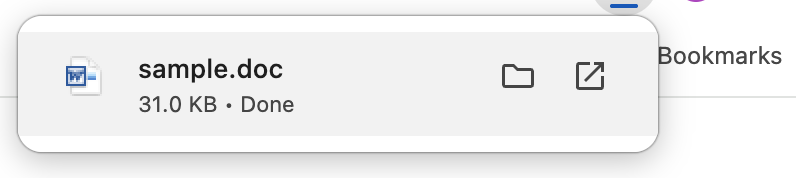
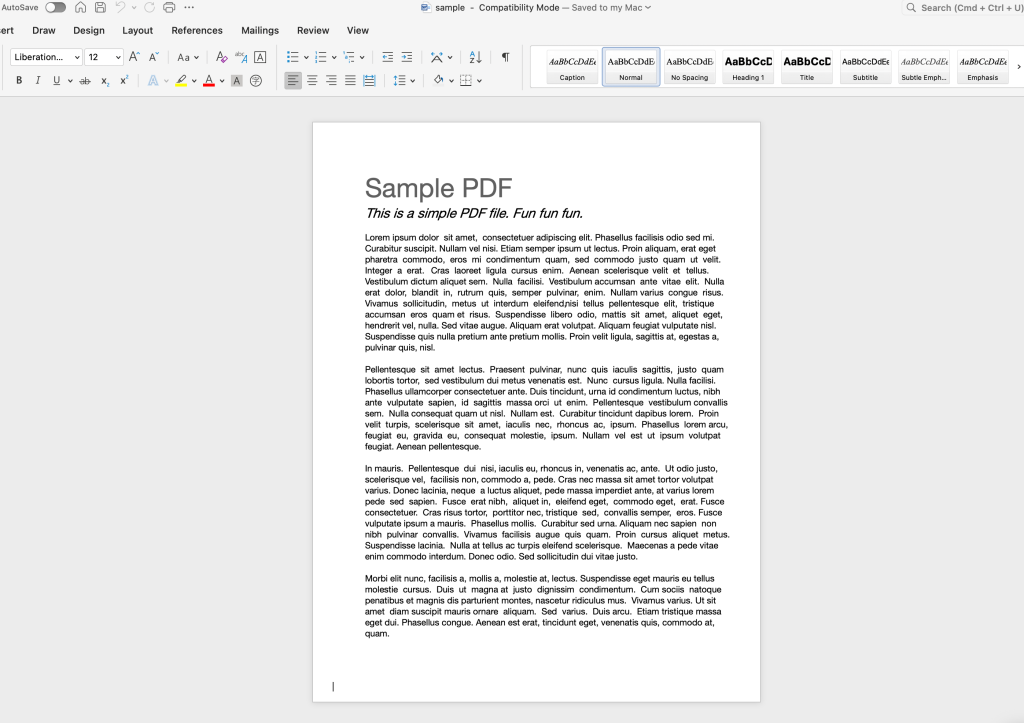
This is the real checkpoint. I always inspect tables, page breaks, headings, and font substitution before I decide whether the DOCX is actually usable.
What held up, and what still needed fixes
- Held up: body text flow, paragraph spacing, and most table cells.
- Needed fixes: one border style, one row height, and minor heading spacing.
- Did not fail: reading order stayed intact and there was no catastrophic layout collapse.
The part that matters in real life is this: I did not lose the document. I just needed two or three minutes of cleanup before I would send it onward.
Where I would trust it, and where I would slow down
- I would trust it quickly for: text-heavy PDFs, simple reports, and documents without complex tables.
- I would slow down for: pricing tables, legal formatting, forms, and anything where row height or border alignment matters.
- I would stop pretending it is “one click done” for: scanned PDFs and layout-heavy files with lots of merged cells.
That is the real line for me. PDF to Word is excellent for getting to an editable draft fast, but not every DOCX should be treated as final on arrival.
Checklist to keep PDF to Word output clean
One extra thing I still do: if one sentence looks suspicious after conversion, I sometimes paste the before/after text into ToolsKit Text Diff instead of staring at it and pretending I can spot every tiny OCR or formatting change instantly.
- Check every table first because that is usually the weakest spot.
- Compare page breaks with the original PDF before sharing.
- Scan headings, legal text, and numbers for font fallback or spacing drift.
- Save a reviewed DOCX before you send it outside your team.
If your source is scanned, expect more cleanup because OCR adds another error layer. Microsoft also explains these limitations here: Edit PDF content in Word.
FAQ: Convert PDF to Word
Can I convert PDF to Word without losing formatting?
You can usually keep most formatting on text-heavy PDFs. Complex tables and scanned files still tend to need manual fixes.
Why do tables break after PDF to Word conversion?
PDF stores visual positions, while Word stores editable structure. During reconstruction, merged cells, border logic, and spacing can shift.
Is online PDF to Word conversion safe?
Use trusted HTTPS tools and avoid uploading sensitive files without reviewing policy. For highly confidential documents, use a controlled internal workflow instead.
Related tools I actually use in this workflow
- Word to PDF for final handoff
- Compress PDF for attachment limits
- Edit PDF if I need to patch the source before reconversion
- Help Center for edge-case troubleshooting